Mockups for Graphic Design: How to Present Your Work Like a Studio
Mockups for graphic design show your logo, poster or packaging on a real object. Learn the types, how to make a mockup in Photoshop and the mistakes to avoid.
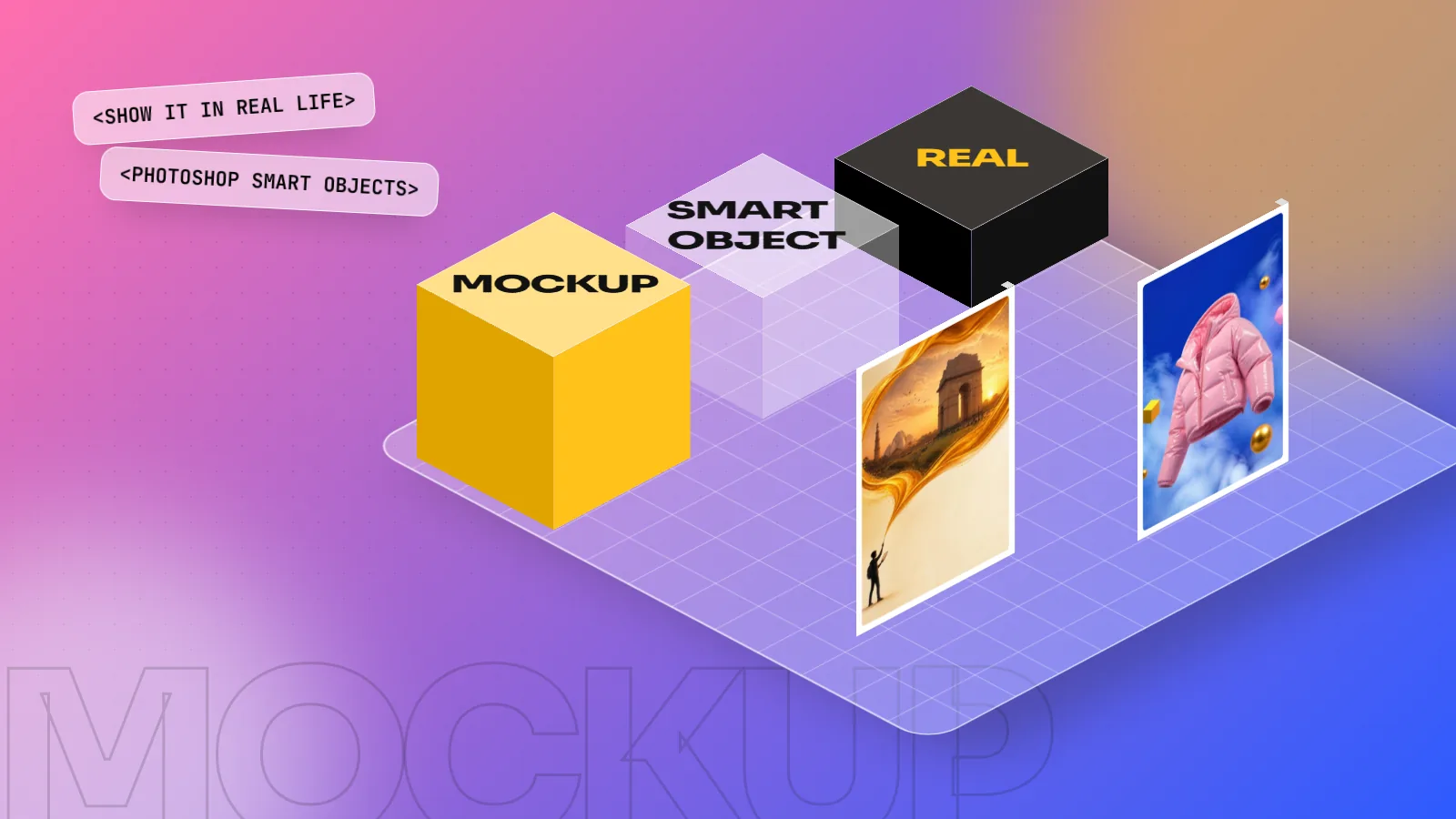
Mockups for graphic design are realistic images that place your flat design on a real object, such as a logo on a shop sign, a poster on a wall or a label on a bottle. They help clients picture the final result and make portfolios look professional. Most designers make them in Photoshop using smart objects.
Mockups for graphic design are realistic images that show your flat design on a real object: a logo on a shop board, a poster on a metro wall, a label on a pickle jar or a visiting card on a desk. They help a client picture the finished job before anything is printed. They also make your portfolio look like the work of a studio. This guide covers the main types of mockups, how to make one in Photoshop step by step, the tools you can use and the mistakes that make mockups look fake.
Why mockups matter
A flat logo on a white artboard tells only half the story. Put the same logo on a cafe signboard, a takeaway cup and a paper bag. Now the client can see the brand in daily life.
| Use | What a mockup does |
|---|---|
| Client presentation | Shows the design at real size and in real places, so decisions come faster |
| Portfolio | Turns flat files into finished-looking projects |
| Social media and Behance | Gives a strong cover image that people stop to look at |
| Packaging and print checks | Reveals if text is too small or a colour is too dark on the object |
| Pitches | Helps a client choose between two directions |
A mockup is a presentation tool, not a replacement for the real job. When the work is printed, photograph it too. A real photo of your menu on a Khan Market cafe table is even stronger than any mockup.
Types of mockups
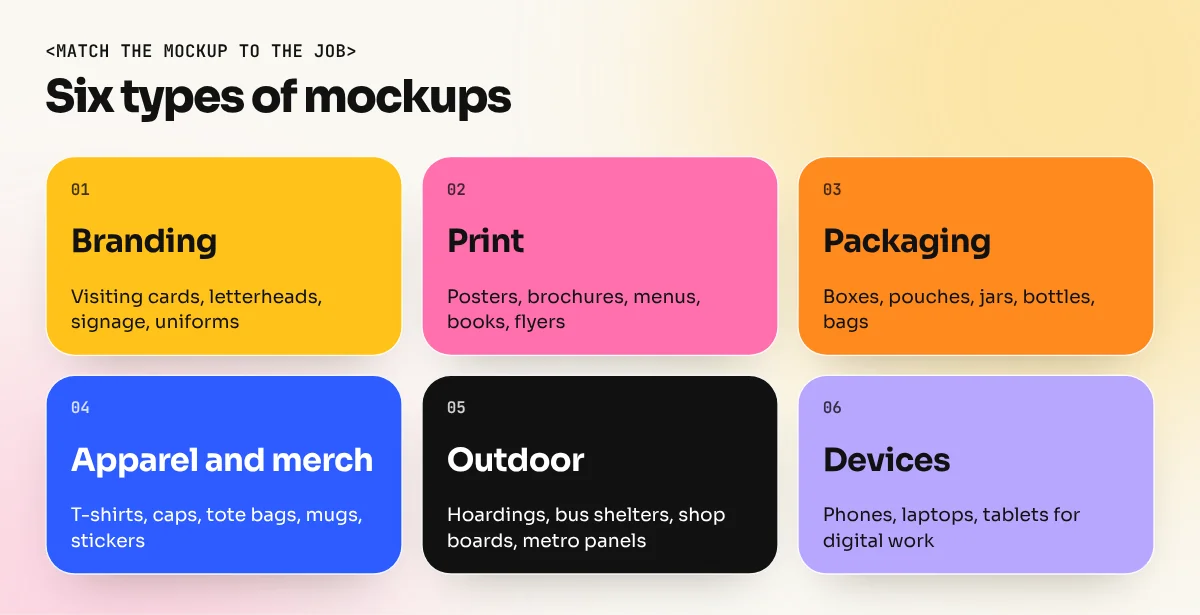
- Branding mockups. Visiting cards, letterheads, envelopes, ID cards, signage and uniforms. Used to present a full identity system. Our guide to graphic design portfolio examples shows how strong portfolios group these into one story.
- Print mockups. Posters, brochures, books, magazines, menus and flyers, shown open, folded or stacked.
- Packaging mockups. Boxes, pouches, bottles, jars, cans and shopping bags. Very important because a flat dieline is hard for clients to read.
- Apparel and merchandise. T-shirts, caps, tote bags, mugs and stickers.
- Outdoor mockups. Hoardings, bus shelters, shop boards and metro panels.
- Device mockups. Phones, laptops and tablets, used for social media posts, websites and app screens.
How to make a mockup in Photoshop, step by step
Most ready-made mockups are Photoshop PSD files with a "smart object" layer. A smart object is a container: you put your design inside it and Photoshop wraps it onto the product with the right angle, shadows and texture.
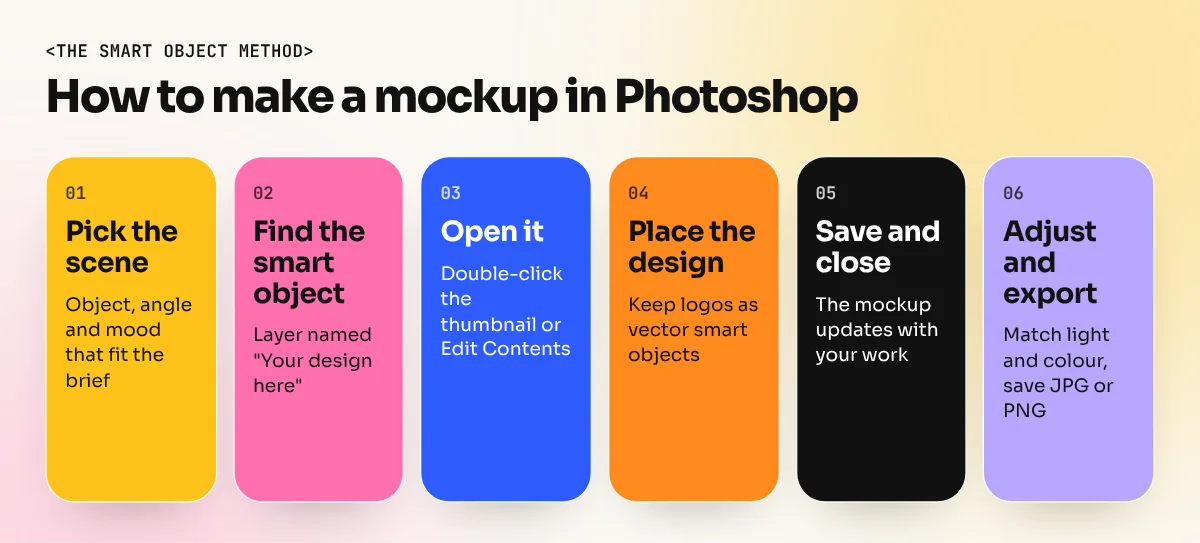
- Choose a mockup that fits the job. Match the object, angle and mood to the brief. A premium tea brand needs a calm, natural-light scene, not a loud studio shot.
- Open the PSD and find the smart object. Look for a layer with a small smart object icon, usually named "Your design here" or "Place artwork".
- Open the smart object. Double-click the layer thumbnail, or go to Layer, Smart Objects, Edit Contents. A new document opens at the size the mockup expects.
- Place your design. Paste or place your artwork at that size. Keep vector logos as vector smart objects so they stay sharp.
- Save and close. Press Save in the inner document and close it. The mockup updates with your design on the object.
- Adjust colour and light. Change the background colour, adjust shadows or add a gradient layer so the scene matches your brand palette.
- Export. Save a JPG or PNG at the size you need: around 1600 to 2000 pixels wide for a portfolio, smaller for social media.
If you have your own design file ready to go in, you can also use Layer, Smart Objects, Replace Contents and pick the file directly.
Making your own mockup from a photo
Ready mockups are quick, but everyone uses the same popular ones. Making your own gives your portfolio a local, original feel.
- Shoot a clean photo. Take a photo of a plain object, for example a blank kraft paper bag, a white mug or an empty shop board, in soft daylight.
- Convert the area to a smart object. Place your design over the surface and convert it to a smart object.
- Match the angle. Use Edit, Transform, Perspective or Warp to fit the design onto the surface.
- Add the real texture back. Set the design layer to Multiply or Linear Burn and lower the opacity a little so folds and grain show through.
- Add light and shadow. Duplicate the photo, desaturate it and use it as a lighting layer above the design.
Photoshop Generative Fill and AI image tools can help to extend a background or clean up a photo for a mockup. Keep the product and your design real. If you use AI-generated scenes in client work, say so.
Mockup tools compared
| Tool | Good for | Limits |
|---|---|---|
| Photoshop with PSD mockups | Full control, realistic light and shadow | Needs Photoshop skills |
| Illustrator mockup feature | Quick placement of vector art on a photo | Less control over complex scenes |
| Canva mockups app | Fast device and product mockups | Fewer realistic print scenes |
| Figma plugins | Phone and laptop screens for digital work | Mainly devices, not print |
| Your own photos | Original, local, believable | Takes time to shoot and edit |
For most graphic designers, Photoshop is the main mockup tool. Our Photoshop course covers smart objects, perspective, blending modes and lighting, the exact skills you need here.
Licences and honesty
Many mockup files are free, but "free" does not always mean free for every use.
- Read the licence on the download page. Some allow commercial use, some only personal use and some ask for credit.
- Keep a record of where each mockup came from, in a simple text file inside the project folder.
- Never remove watermarks or use a paid mockup you did not buy.
- Do not present a concept as a live project. If a client never printed the packaging, call it a concept or self project in your portfolio. Interviewers respect honesty more than a fake client list.
Common mockup mistakes
- Design too small to see. A tiny logo on a huge room photo shows nothing. Choose a close mockup.
- Wrong perspective or lighting. Flat design sitting on top of a curved bottle looks fake. Use warp and shadow layers.
- Mockup stronger than the design. If the viewer remembers the fancy background, not your work, the scene is too busy.
- Same mockup for every project. Change scenes and angles so each project feels different.
- No flat artwork. Always show the actual design next to the mockups, so people can see the details.
On Behance, a strong cover mockup can make the difference between a click and a scroll. Our guide to building a Behance portfolio explains how to order mockups, flat files and process images in one project.
Bringing it together
A good mockup answers one question for the viewer: "What will this look like in real life?" Choose the right type, keep it simple and realistic and always pair it with the flat design and a short explanation of the brief.
You will build portfolio-ready mockups for branding, packaging and print projects in our 6-month graphic design diploma, so every project you show already looks finished.
Frequently asked questions
Are free mockups safe to use in a portfolio?
Many free mockups allow personal and commercial use, but some ask for credit or forbid resale. Read the licence on the download page and keep a note of it. Never remove a watermark from a paid mockup or use a file whose licence you cannot find.
Can I make a mockup without Photoshop?
Yes. Canva has a mockups app, Illustrator has a built-in mockup feature in recent versions and Figma has plugins for device mockups. Photoshop still gives the most control over shadows, perspective and lighting.
How many mockups should one portfolio project have?
Two to four is usually enough: one hero mockup, one or two close-ups and, if possible, one real photo. Also show the flat design so the viewer can see the work itself.
Is it wrong to show only mockups in a portfolio?
It is not wrong, but it is weaker. Mockups show context. The flat artwork, the brief and your process show your thinking. Interviewers want to see both.