Infographic Design: How to Turn Data into a Clear Graphic
Infographic design made simple: the main types, 8 steps from data to final file, which chart to use when, colour and type rules plus common beginner mistakes.
Infographic design is the craft of turning data or information into a graphic people understand in seconds. Start with one clear message, collect and check your data, pick the right chart for each fact, build a simple layout on a grid, use few colours with strong contrast and label everything. Cut anything that does not support the message.
Infographic design is the craft of turning numbers, steps or facts into a single graphic that people understand in a few seconds. A good infographic does the reading for the viewer: it picks one message, shows the proof with the right chart and leaves out everything else. This guide explains the main types of infographics, an 8-step process from raw data to final file, which chart to use when, the colour and type rules that keep it clear and the mistakes beginners make.
What an infographic is and is not
An infographic is information plus graphics. It is not a poster with a few icons and a lot of text. The test is simple: could someone get the main point without reading every word? If yes, it is working.
Infographics are used everywhere in India: election result graphics on news channels, metro route maps, nutrition panels on food packs, annual reports, government scheme posters and the "5 tips" carousels you see on Instagram every day.
Here are the main types and when each one fits.
| Type | What it shows | Example |
|---|---|---|
| Statistical | Numbers and comparisons | Monthly sales of a brand, city-wise |
| Timeline | Events in order | History of a company from 1990 to today |
| Process | Steps to follow | How to apply for a passport |
| Comparison | Two or more options side by side | Phone A vs Phone B specs |
| List | Tips or facts grouped together | 7 ways to save electricity at home |
| Map | Data tied to places | Rainfall by state |
| Hierarchy | Levels or structure | A company's team structure |
Most real infographics mix two types, for example a timeline with a few statistics on it.
Three famous infographics worth studying
Great information design is older than computers. These three are taught in design schools around the world and are easy to find in books and museum collections.
- Florence Nightingale's "rose" diagram (1858). She showed that far more soldiers in the Crimean War died of preventable disease than of battle wounds. The chart helped push for better hospital hygiene. Lesson: one clear message can change decisions.
- Charles Minard's map of Napoleon's march on Moscow (1869). A single band shrinks as the army loses men, with temperature shown below. Lesson: you can show several kinds of data in one simple shape.
- Harry Beck's London Underground map (1933). He dropped real distances and used straight lines and even spacing, because passengers only need the order of stations. Lesson: leave out true but useless detail. Most metro maps in India, including Delhi Metro's, follow the same idea.
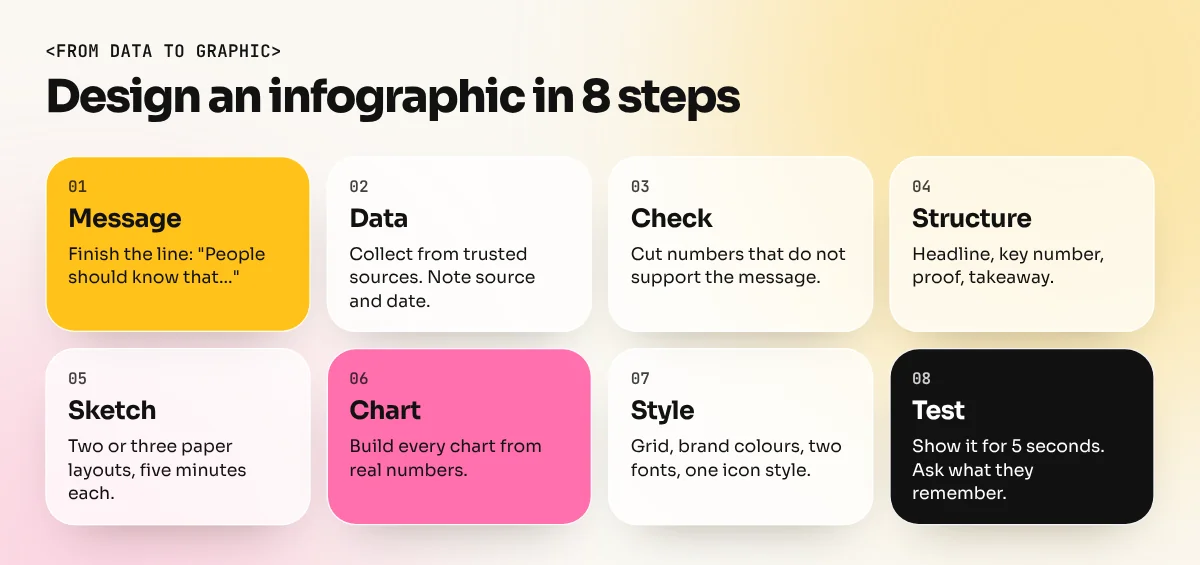
How to design an infographic in 8 steps
- Write the one message. Finish this sentence before you open any software: "After seeing this, people should know that ..." If you cannot finish it, you are not ready to design.
- Collect the data. Use trusted sources: government data portals, company reports or your client's own numbers. Note the source and the date for every figure.
- Check and trim it. Remove numbers that do not support your message. Round figures sensibly: "about 42%" reads faster than "41.87%".
- Plan the structure. Decide the reading order: a headline, then the key number, then the proof, then a short takeaway. Write it as a list first.
- Sketch it on paper. Draw rough boxes for each part. Try two or three layouts in five minutes each. Paper is faster than any app at this stage.
- Build the charts. Make each chart from the real numbers, not by eye. In Illustrator you can use the Graph tools, then style the result.
- Style it. Apply a grid, the brand colours, two fonts at most and icons in one consistent style.
- Test it. Show it to someone for five seconds and ask what they remember. If they miss the main point, make that part bigger or cut things around it.
Which chart to use when
Picking the wrong chart is the most common problem in student infographics. Use this table as a shortcut.
| You want to show | Use | Avoid |
|---|---|---|
| Comparison between a few items | Bar chart | 3D bars |
| Change over time | Line chart | Pie chart |
| Parts of a whole (2 to 5 parts) | Pie, donut or stacked bar | Pie with 10 slices |
| One big number | Large figure with a short label | A chart for a single value |
| Steps in order | Numbered flow with arrows | Random icon grid |
| Places | Map with a simple colour scale | Many colours per state |
| Ranking | Sorted horizontal bars | Unsorted bars |
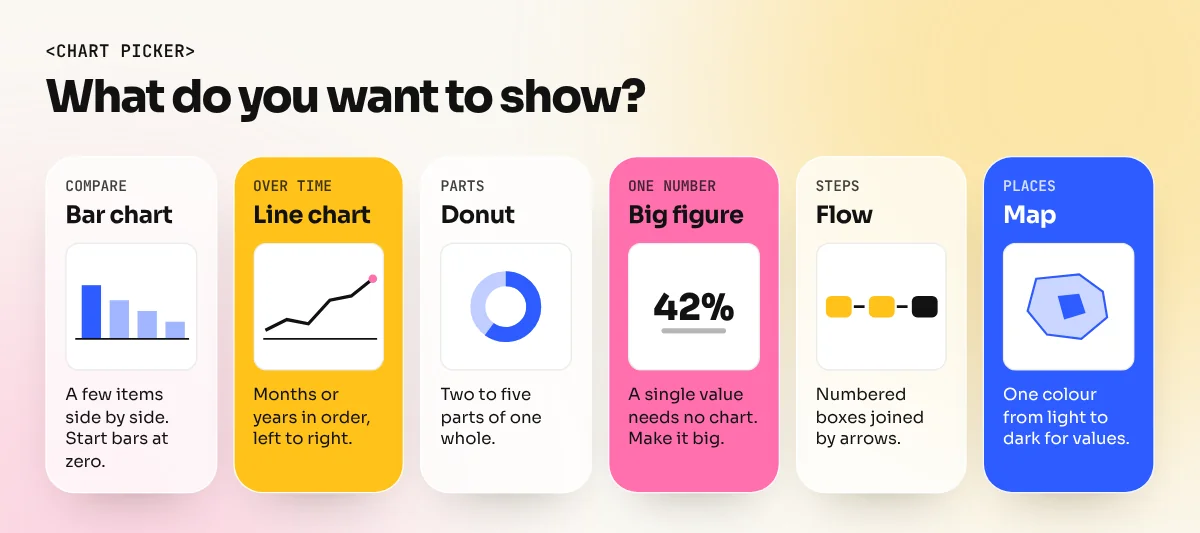
A few chart rules that save you from embarrassment:
- Bar charts should start at zero. A bar that starts at 50 makes small differences look huge.
- Sort bars from biggest to smallest unless the order means something, like months.
- Label the bars directly instead of using a separate legend when you can.
- Use the same scale when you put two charts side by side.
Colour, type and layout rules
Colour. Pick one main colour, one accent and a neutral. Use the accent only for the single number or bar you want people to see first. For text, follow the W3C's Web Content Accessibility Guidelines (WCAG): normal text needs a contrast ratio of at least 4.5 to 1 against its background and large text at least 3 to 1. Also avoid using red and green alone to tell two things apart, since many people with colour blindness cannot separate them. Add labels or patterns as well.
Type. Use one font for headings and one for body text, or one family in two weights. Numbers should be big and bold. Labels should be short and readable at the final size. If you need help choosing, see our guide to font pairing combinations that always work.
Layout. Put the layout on a grid so charts, icons and text line up. Leave white space around each section so the eye can rest. Our guide to grid systems in graphic design shows how to set one up in minutes.
Icons. Use one icon set in one style: all line icons or all filled, same stroke width, same corner style. Mixed icon styles make even good data look careless.
Tools for infographic design
| Tool | Best for | Notes |
|---|---|---|
| Adobe Illustrator | Custom infographics, icons and print | Vector, so it stays sharp at any size. Has built-in Graph tools |
| Adobe InDesign | Reports and multi-page documents | Good for long text with charts placed in |
| Adobe Photoshop | Photo-based infographics | Use it for images, not for building charts |
| Canva | Quick social media infographics | Many chart and layout options, fast to edit |
| Figma | Screen infographics and slides | Good for teams editing together |
| Spreadsheets | Building accurate charts from data | Make the chart here, then restyle it in Illustrator |
A practical workflow many designers use: make the chart in a spreadsheet so the numbers are exact, paste or import it into Illustrator, then style it to match the brand.
Common mistakes beginners make
- Too much text. If a paragraph explains a chart, the chart is not working.
- Decoration over data. 3D effects, shadows and clip art make numbers harder to read.
- No source. Always add a small line at the bottom naming where the data came from and when.
- Too many messages. One infographic, one main point. Split the rest into a second graphic or a carousel.
- Wrong size for the platform. A long vertical graphic shrinks to tiny text on a phone feed. Design at the real size and check it on a phone.
- Made-up numbers. Never invent data to fill space. One wrong figure ruins trust in the whole graphic.
Practice briefs to build your portfolio
Try these with real, public data. Note the source on each one.
- Your city's metro. A simple graphic showing the lines and a few facts from the operator's published data.
- Your daily chai. A process infographic of how tea goes from garden to kulhad, using information from tea board publications.
- A product comparison. Two phones or two scooters, using the makers' official spec sheets.
- A festival guide. A timeline of a festival's main days with short notes on each.
- A personal data project. Track your own screen time or spending for two weeks and turn it into a clean chart.
Three finished infographics, each with a short case study of your message, data source and design choices, make a strong portfolio section.
Learn infographic design with feedback
Infographics sit where several skills meet: layout, typography, colour and clean vector work. In our 6-month graphic design diploma you practise all of them on real briefs and the Adobe Illustrator course covers the charts, icons and vector skills infographics depend on. Start with one message, one chart and one clean layout. Then make the next one better.
Frequently asked questions
Which software is best for infographic design?
Adobe Illustrator is the standard for custom infographics because charts and icons stay sharp as vectors. Canva is quick for simple social media infographics and InDesign works well for multi-page reports. Pick the tool by the job, not the hype.
How many colours should an infographic have?
Usually one main colour, one accent colour and a neutral grey or black. Use the accent only on the number or bar you want people to notice first. Too many colours make every element shout at once.
What size should an infographic be?
It depends on where it will be seen. A vertical 1080 x 1350 pixel image suits an Instagram post, a long vertical image suits a blog or Pinterest and A4 or A3 suits print. Decide the size before you start the layout.
Can I use AI to make an infographic?
AI tools can help you outline the content or suggest a layout, but they often get numbers and text wrong inside images. Build the charts and labels yourself from checked data so every figure is correct.