Grid System in Graphic Design: A Practical Guide With Examples
Grid system in graphic design explained simply: margins, columns, gutters, 5 grid types, how to set one up in InDesign or Illustrator plus easy practice projects.
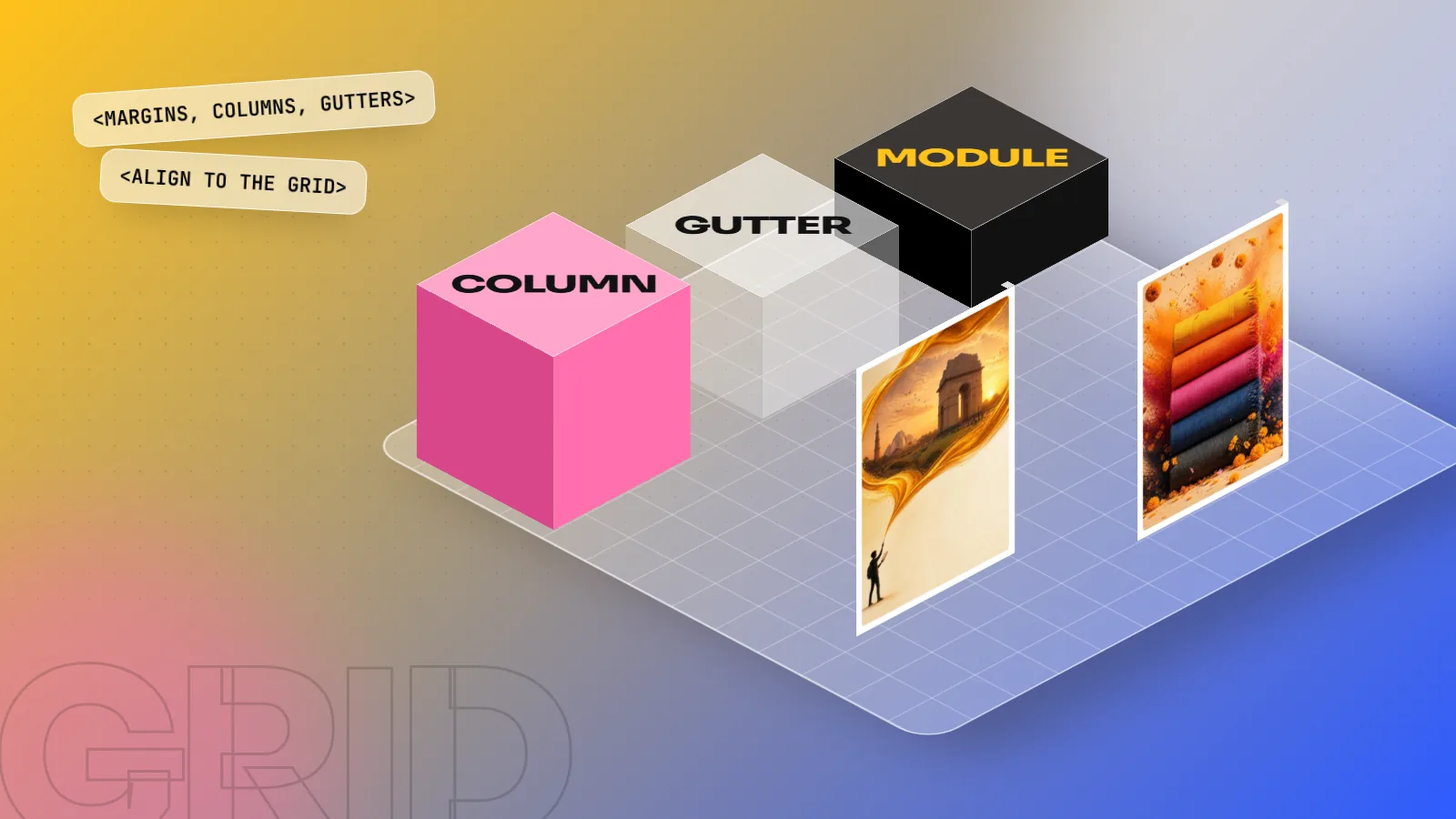
A grid system in graphic design is a set of invisible lines that divides a page into margins, columns, gutters and rows. Designers place text and images on these lines so every element lines up. Grids make layouts look ordered, speed up work on multi-page jobs and keep a brand consistent across posters, books, websites and social posts.
A grid system in graphic design is a set of invisible guide lines that divides a page into margins, columns, gutters and rows. You place every heading, photo and block of text on these lines, so the whole layout lines up and feels planned. Grids are the reason a good magazine spread or a clean website looks calm, while a page with the same content thrown in at random looks messy. This guide explains the parts of a grid, the five main types, how to set one up in InDesign or Illustrator and three small projects to practise.
What a grid system actually does
Think of a grid as the steel frame inside a building. Nobody sees it in the finished office, but it decides where every wall and window can go. In design, the grid decides where text and images can sit.
A grid does four useful jobs:
- Creates alignment. When the left edge of a headline lines up with the left edge of the text and the photo below it, the reader's eye moves smoothly down the page.
- Saves time. On a 24-page brochure or a set of 30 social posts, you do not decide every position from zero. You drop content into the grid.
- Keeps a brand consistent. A brand that uses the same grid on its menu card, hoarding and Instagram feed looks like one company, not five.
- Helps teamwork. When two designers share one grid, their pages match without long meetings.
If you are new to page design, our guide on layout design rules and grids covers the wider basics. This post goes deeper into the grid itself.
The parts of a grid
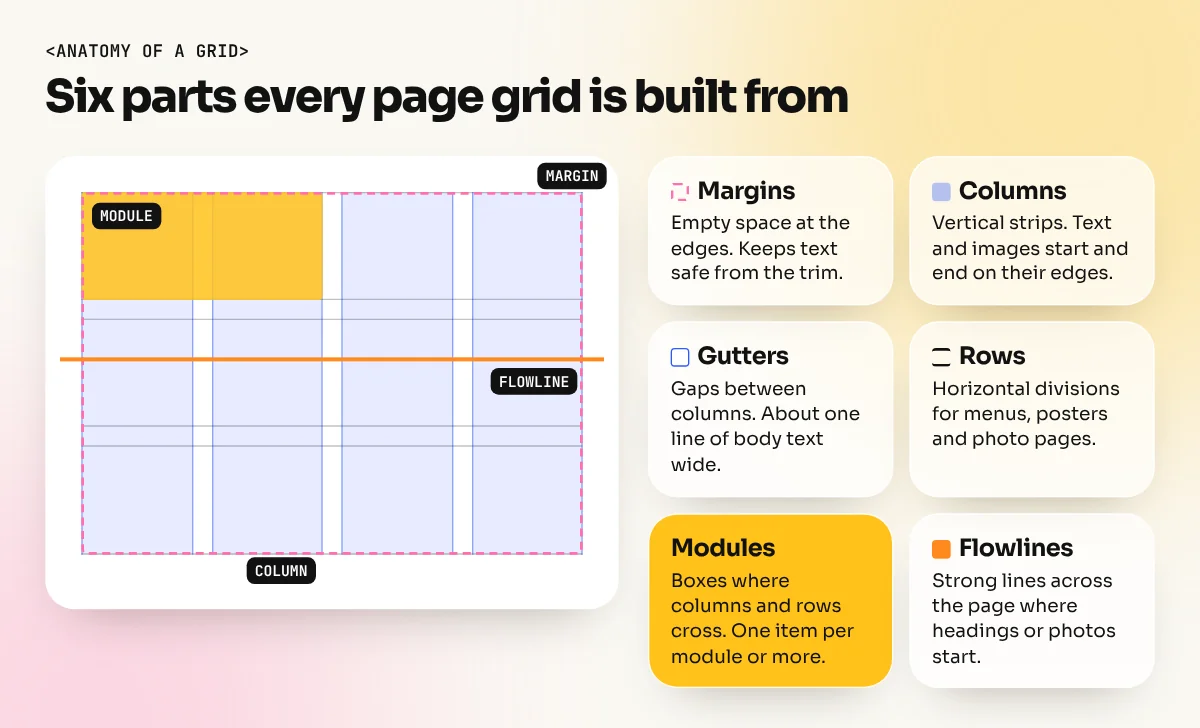
Every grid, from a wedding card to a news website, is built from the same parts. Learn these words, because printers, art directors and developers use them all the time.
| Part | What it is | Simple tip |
|---|---|---|
| Margins | Empty space around the edge of the page | Keep text away from the trim so it is not cut off in print |
| Columns | Vertical strips where content sits | Text and images start and end on column edges |
| Gutters | Gaps between columns | Usually the same as the space between two lines of text, or a little wider |
| Rows | Horizontal divisions | Useful for posters, menus and photo-heavy pages |
| Modules | Boxes formed where columns and rows cross | Place one image or one product in one or more modules |
| Flowlines | Strong horizontal lines across the page | Start headings or photos from the same line on every page |
| Baseline grid | Thin lines that every line of text sits on | Makes text in side-by-side columns line up exactly |
5 types of grid and when to use each
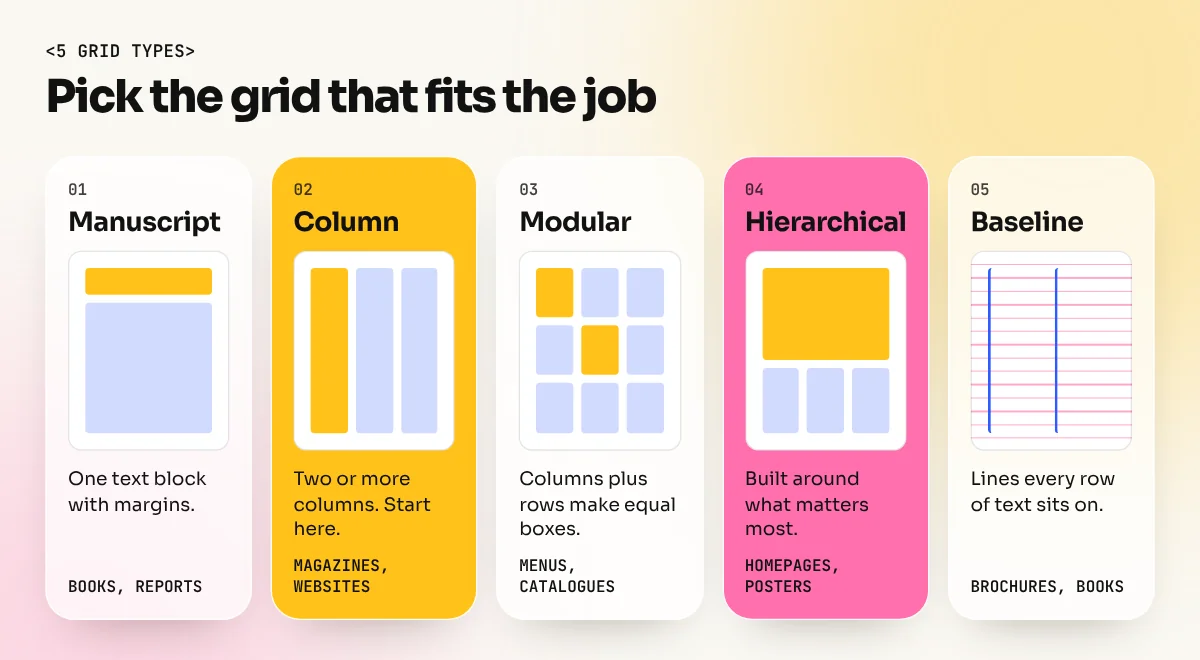
You will see different names in different books, but these five cover almost all real work.
1. Manuscript grid (single column)
One big text block with margins around it. This is the grid of novels, reports and long blog articles. Use it when the job is mostly reading. The skill here is choosing good margins and a comfortable line length.
2. Column grid
The page is split into two or more columns. This is the most common grid in magazines, newspapers, brochures and websites. A text block might span two columns while a photo spans three. Column grids are flexible and easy to learn, so start here.
3. Modular grid
Columns plus rows, so the page becomes a set of equal boxes (modules). It suits jobs with many small items: a restaurant menu, a product catalogue, a calendar or a page of photos from a Delhi food walk. Each item gets one or more modules and the page stays tidy.
4. Hierarchical grid
The grid is built around the content instead of equal boxes. A homepage may have one wide hero area, then three narrower blocks, then a footer. Many websites and posters use this type, because some content clearly matters more than the rest.
5. Baseline grid
Not a layout on its own, but a layer of thin horizontal lines that all text sits on. In a two-column brochure, it makes the lines of text in both columns sit at exactly the same height. It is one of the details that separates professional print work from amateur work.
Where grids came from (in two minutes)
Designers have used grids for centuries. Old printed books already used careful proportions for their text blocks and margins. The modern idea of a strict design grid is linked most of all with Swiss designers in the 1950s and 1960s. The best-known name is Josef Müller-Brockmann, whose book Grid Systems in Graphic Design (first published in 1981) is still read in design schools today.
This style is often called the Swiss style or International Typographic Style: clean sans serif type, strong alignment and lots of white space. You can see its influence today in metro maps, airport signs and app screens.

In the video above, design teacher George Kopec takes apart classic Swiss posters to show how Müller-Brockmann and others planned every circle and line of type on a grid. His most useful tip for beginners: vertically align your type with the images above or below it and your layouts will come together much faster.
How to set up a grid, step by step
Here is a method that works for almost any job, whether it is an A4 brochure for a Lajpat Nagar clothing store or a set of Instagram posts.
- Start with the format. Decide the size first: A4, A5, 1080 x 1350 pixels for an Instagram feed post, or a website width. The grid depends on the format.
- Set the margins. Give the page room to breathe. In print, keep important text safely inside the trim. Many designers make the bottom margin a little bigger than the top, so the content does not look like it is sliding off the page.
- Choose the number of columns. Use 4 to 6 for posters and social posts, 6 to 12 for brochures and magazines and 12 for websites. Twelve is popular because it divides into 2, 3, 4 and 6 equal parts.
- Set the gutter width. A good starting point is the space between two lines of your body text, so the gap feels part of the same rhythm.
- Add rows or flowlines if you need them. Menus and catalogues need rows. Most text-heavy pages only need one or two flowlines for headings.
- Set a baseline grid for text-heavy work. Match it to your body text leading, for example 14 point leading means a 14 point baseline grid.
- Place the biggest items first. Put the main photo and headline on the grid, then the body text, then small details like captions and logos.
- Break the grid once, on purpose. A photo that runs off the edge or a big number that crosses columns adds energy. One break looks bold. Ten breaks look like a mistake.
Where to find grid tools in your software
| Software | Where the grid tools are |
|---|---|
| Adobe InDesign | Layout > Margins and Columns, Layout > Create Guides and the baseline grid settings in Preferences > Grids |
| Adobe Illustrator | View > Rulers, drag out guides, or draw a rectangle and use Object > Path > Split Into Grid |
| Adobe Photoshop | View > Guides > New Guide Layout to add columns, rows and margins in one dialog |
| Canva | File > View settings > Show rulers and guides, plus grid layouts from the Elements panel |
| Figma | Layout grids on any frame, with column, row and grid options |
InDesign has the strongest grid tools for print, which is why page grids are a big part of the InDesign course.
Grids on the web and on phones
Screens change size, so web grids have to stretch. Google's Material Design guidelines describe a responsive layout grid that uses 4 columns on phones, 8 on small tablets and 12 on larger screens. The popular Bootstrap web framework is also built on a 12-column grid.
For a graphic designer this matters in two ways:
- Social media designs usually sit on a simple 4 or 6 column grid inside the post size. Keep text in the safe central area so app buttons do not cover it.
- Website mock-ups you hand to a developer should use the same column count the developer will build with. If your design is on a random grid, the live site will not match your file.
Common grid mistakes beginners make
| Mistake | What it looks like | Fix |
|---|---|---|
| No grid at all | Items float at slightly different positions | Set columns before placing anything |
| Too many columns for a small job | Hours of planning for a single poster | Use 4 to 6 columns for posters and posts |
| Ignoring gutters | Text from two columns almost touches | Keep gutters equal and wide enough to read |
| Breaking the grid everywhere | The page feels random again | Break it once, with a clear reason |
| Text not on a baseline grid | Lines in side-by-side columns do not match | Turn on a baseline grid for brochures and books |
| Different grid on every page | A brochure that feels like five designs | Save the grid in the master or parent page |
Grids work closely with the other rules of design such as alignment, proximity and balance. Our post on the 12 principles of graphic design shows how they connect.
Three practice projects
You learn grids by using them, not by reading about them. Try these in order.
- One poster, three grids. Take a simple event poster (a college fest or a chai stall opening). Design it on a 4-column grid, then a 6-column grid, then a modular 3 x 4 grid. Put the three side by side and see which feels strongest.
- A 4-page menu card. Use a modular grid so each dish gets one module. Add a baseline grid so prices line up across columns.
- Redesign a real page. Pick a busy local leaflet. Rebuild it on a 6-column grid with the same text and images. The before and after makes a strong portfolio piece.
In our 6-month graphic design diploma, layout and grids come early, alongside typography and colour, because posters, brochures and brand projects all depend on them.
The bottom line
A grid system is the quiet structure behind every layout that looks professional. Learn the parts (margins, columns, gutters, rows and the baseline grid), start with a simple column grid and set it up before you place a single item. Once that becomes a habit, your designs will look more confident and you will work much faster.
Frequently asked questions
What is the most common grid in graphic design?
The column grid. Most magazines, brochures and websites use a page split into columns with gutters between them. A 12-column grid is popular on the web because 12 divides evenly into 2, 3, 4 and 6 columns.
How many columns should my grid have?
Match the columns to the format. A poster or Instagram post works well with 4 to 6 columns, an A4 brochure with 6 to 12 and a website with 12. More columns give you more layout options, but they take longer to plan.
Do designers always follow the grid strictly?
No. The grid is a starting point, not a cage. Good designers break it on purpose, for example letting one photo run off the page, but they do it once and with a reason so the rest of the layout still feels ordered.
Can I use a grid in Canva?
Yes. Canva has rulers, guides and a grid layout option, so you can add column guides and snap elements to them. The thinking is the same as in InDesign: margins first, then columns, then place your content.