Photoshop Generative Fill: A Designer's Practical Guide
Learn Photoshop Generative Fill step by step: select, prompt, choose a variation, expand a canvas, save credits and fix common problems in real client work.
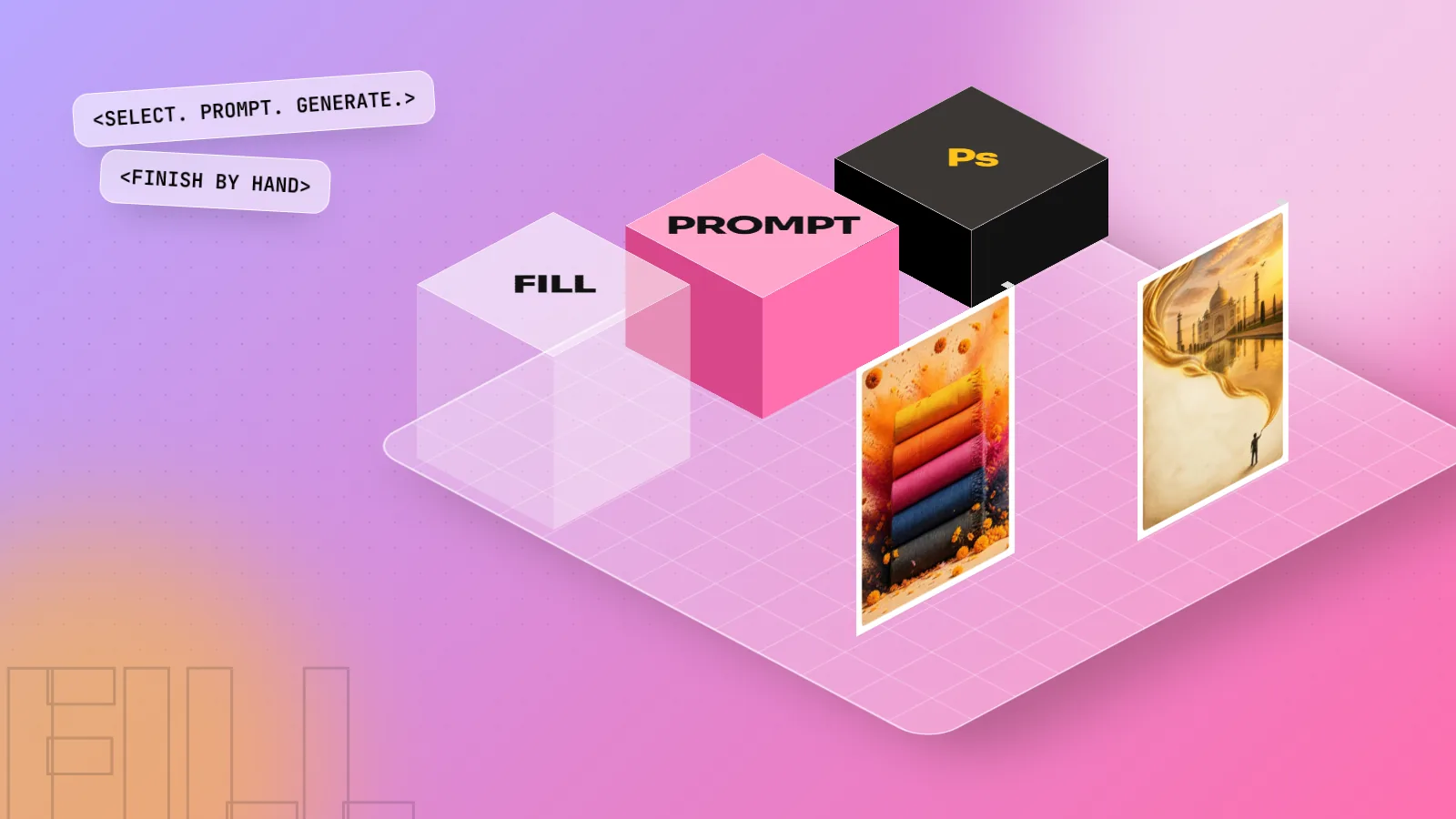
Photoshop Generative Fill adds, removes or changes part of an image from a short text prompt. Make a selection, click Generative Fill in the Contextual Task Bar, type what you want or leave it blank to remove something, then click Generate. Photoshop shows variations on a new Generative Layer, so the original photo stays untouched.
Photoshop Generative Fill lets you add, remove or change part of a photo by selecting an area and typing what you want. It works inside a normal Photoshop file, on its own Generative Layer, so your original photo stays safe. Designers use it every day to extend product shots for wide banners, remove clutter from location photos and test ideas quickly. This guide shows the exact steps, where it saves real time on client jobs, how credits work and how to fix the results that go wrong.
What Generative Fill does (and what it does not)
Adobe added Generative Fill to the main Photoshop app in version 25.0 in 2023. Since then it has become one of the most used AI tools in design studios. It does three jobs:
| Job | How you do it | Example |
|---|---|---|
| Add | Select an area, type a prompt | Add a kulhad of chai on an empty table |
| Remove | Select an object, leave the prompt blank | Remove a bike parked in front of a shop |
| Replace | Select an object, describe the new one | Change a plain wall into a brick wall |
| Expand | Make the canvas bigger with the Crop tool, then Generate | Turn a square photo into a wide hoarding format |
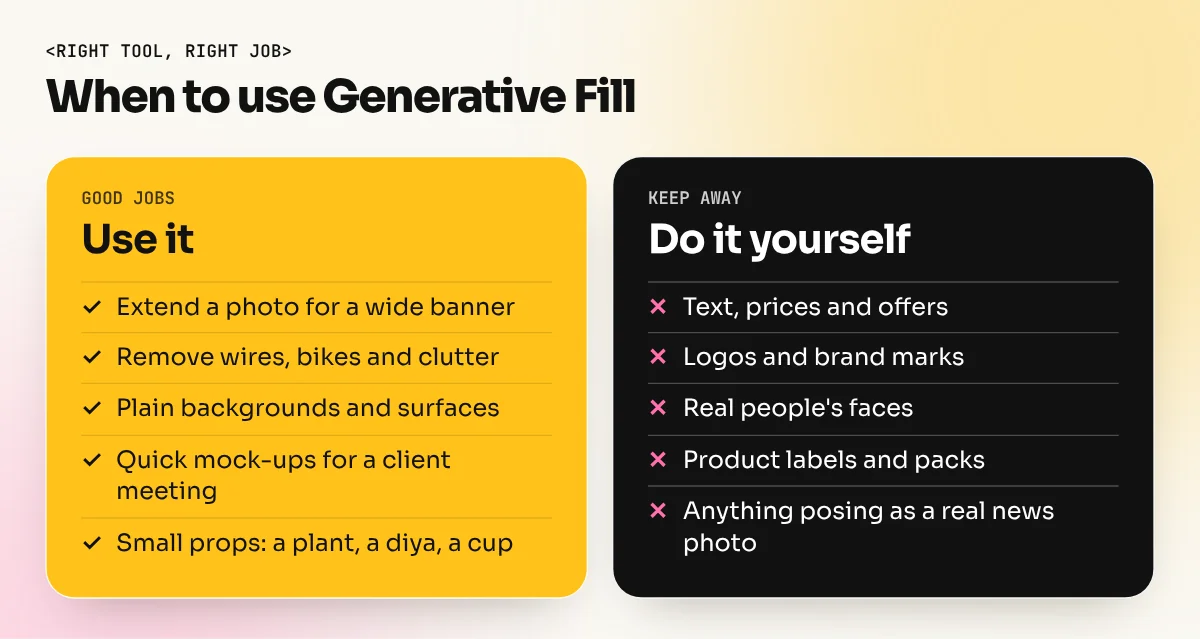
What it does not do well: clean readable text, exact logos, real people's faces and fine product details like the label on a bottle. Those still need a designer, a real photo or a vector file.
All you need is Photoshop 25.0 or later on desktop, an Adobe account that is signed in and an internet connection, because the image is made on Adobe's servers.
How to use Generative Fill: step by step
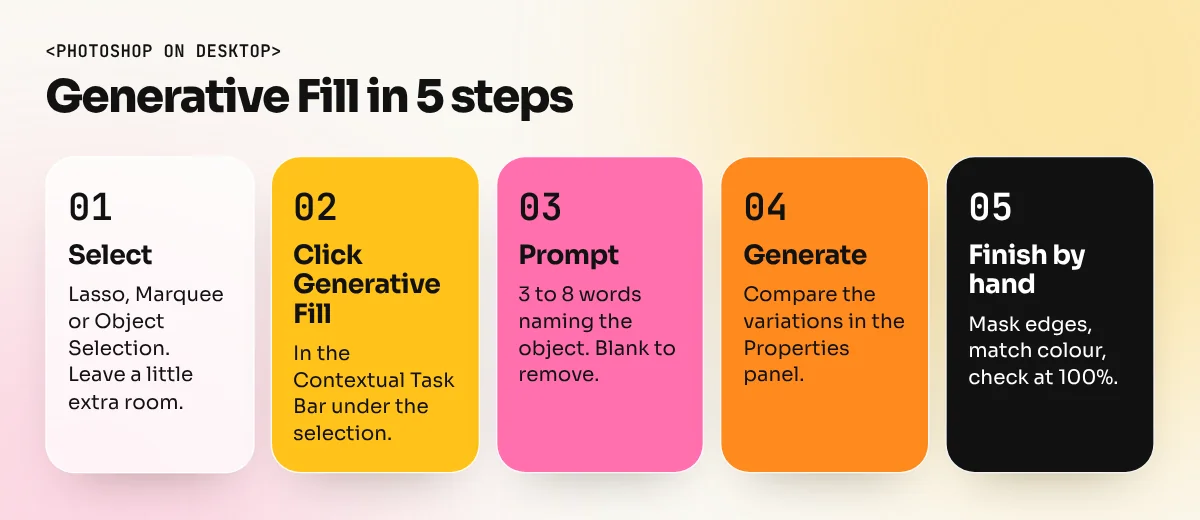
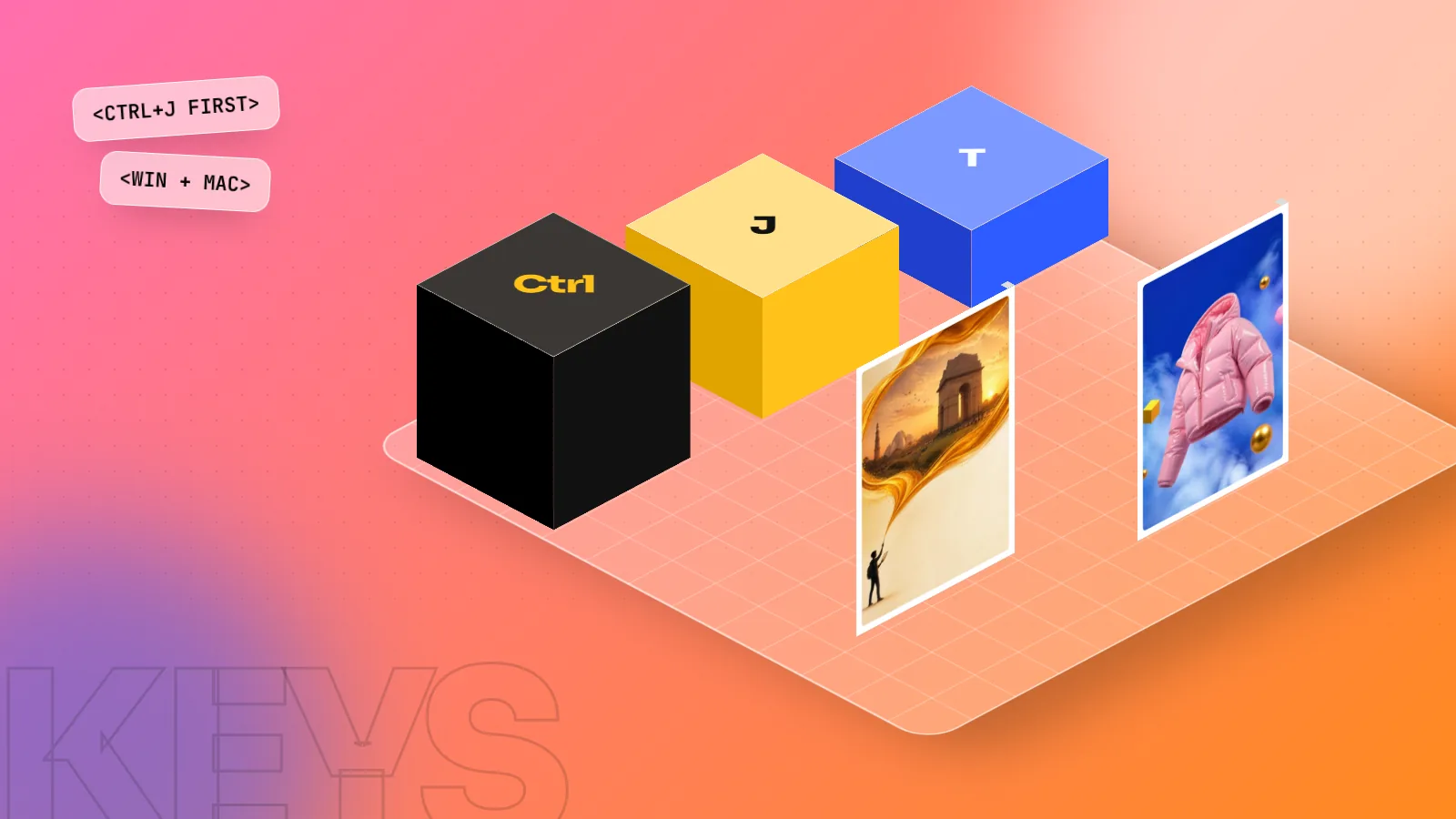
- Open your photo and duplicate the layer with Ctrl+J (Cmd+J on Mac) so you always have a clean copy.
- Make a selection around the area you want to change. Use the Lasso (L), Rectangular Marquee (M) or Object Selection (W). Leave a little extra space around the object so the new content blends with its surroundings.
- Click Generative Fill in the Contextual Task Bar that appears under the selection. If you cannot see the bar, turn it on from Window > Contextual Task Bar. You can also use Edit > Generative Fill.
- Type a short prompt that describes what should be there, for example "wooden table with a steel tumbler". To remove something, leave the box empty.
- Click Generate. Photoshop makes a few variations and shows them in the Properties panel. Click each thumbnail to compare.
- Pick the best one or click Generate again. You can also edit the prompt and try once more. Use Generate Similar on a result you like to get close variations.
- Finish by hand. Paint on the Generative Layer's mask to soften edges, match colour with a Curves adjustment and zoom to 100 percent (Ctrl+1) to check details.
Each generation becomes a Generative Layer with its own mask in the Layers panel. Hide it, delete it or lower its opacity like any other layer. Nothing is baked into your original photo.
Writing prompts that work
Generative Fill prompts should be short and plain. Describe the object, not the instruction.
| Weak prompt | Better prompt | Why |
|---|---|---|
| "add something nice here" | "potted money plant" | Names a clear object |
| "remove the man" | (leave blank) | Blank prompt fills from the surroundings |
| "make it Indian style" | "brass diya with a small flame" | Specific beats vague |
| "beautiful background" | "soft beige studio wall, warm light" | Describes surface and light |
| "a girl holding a phone" | Use a real stock photo | People and hands are still unreliable |
Three habits that help:
- Match the light. If the photo has warm evening light, say "warm light" in the prompt.
- Select generously. A tight selection gives hard edges. A little extra room lets the AI blend.
- Work in small pieces. Fill one object at a time instead of one huge selection. Large areas tend to come out softer.
Generative Expand: from Instagram square to hoarding
Clients often send a square or portrait product photo and then ask for a wide website banner or a long hoarding. Generative Expand solves this.
- Select the Crop tool (C).
- Drag the edges of the crop box beyond the photo to make the canvas wider or taller.
- Click Generate in the Contextual Task Bar. Leave the prompt blank to continue the scene, or describe what should appear.
- Check the new areas at 100 percent. Repeating patterns, extra windows and broken lines are common, so fix them with a second smaller fill or the Remove tool.
For a big print job, expand at the final size you need and check the result carefully. AI detail can look fine on a phone and soft on a 20-foot flex.
Credits, models and the rules to know
Generative Fill is not unlimited on every plan. It runs on generative credits.
| Point | What Adobe says (checked October 2026) |
|---|---|
| Cost per generation | 1 credit for a standard Generative Fill generation |
| Photoshop Single App plan | 25 credits a month for subscriptions started on or after 17 June 2025 |
| Higher Creative Cloud plans | More credits; Creative Cloud Pro includes unlimited standard generations |
| Partner AI models | Photoshop also offers partner models from companies such as Google; these use more credits, depending on the model and file size |
| When credits run out | Wait for the monthly reset or buy more |
Plans and numbers change, so check your own plan page before you promise a client a lot of AI work. On a 25-credit plan, every Generate click counts. Plan your selections first and avoid clicking Generate ten times on the same area.
On commercial use, Adobe says features still in the Photoshop beta app may not be used for commercial work. Released features follow your plan's terms. Read the current terms for your plan and keep the client informed when part of an image is AI-made. Never use Generative Fill to fake a real person, a real product claim or a news photo.
Common problems and quick fixes
| Problem | Likely cause | Fix |
|---|---|---|
| Button greyed out | No selection, offline or old version | Make a selection, check internet, update to 25.0 or later |
| Result ignores the prompt | Prompt too long or vague | Use 3 to 8 words naming one object |
| Soft or blurry patch | Selection too large | Fill smaller areas one by one |
| Odd hands, text or logos | Known AI weakness | Use a real photo, or add text and logos yourself as real layers |
| Colour does not match | Lighting differs | Add a clipped Curves or Hue/Saturation layer |
| Warning that the prompt was blocked | Prompt broke Adobe's content rules | Rewrite the prompt in neutral words |
Where Generative Fill fits in a designer's day
Generative Fill is a production tool, not a designer. It saves the boring hours: cleaning backgrounds, extending photos, making quick mock-ups for a client meeting. The idea, the layout, the type and the final check are still yours. Our article on the best AI tools for graphic design shows which other tools sit next to it and the guide on whether AI will replace graphic designers explains why these skills make you more valuable, not less.
In the AI graphic design course at our South Extension studio, students use Photoshop Generative Fill and AI image tools on real briefs, then finish the work by hand. If you are starting from zero, begin with the Photoshop course so you understand layers, masks and selections first. Generative Fill is only as good as the selection and the finishing work around it.
Frequently asked questions
Is Photoshop Generative Fill free?
No. It needs a Photoshop plan or the free trial and each standard generation uses one generative credit. Adobe's credits FAQ says Single App plans bought on or after 17 June 2025 include 25 credits a month, while higher plans include more. Check your plan page for the current number.
Why is Generative Fill greyed out in Photoshop?
Usually because there is no active selection, you are offline, you are not signed in, or your Photoshop is older than version 25.0. Make a selection first, check your internet connection and update Photoshop from the Creative Cloud app.
Can I use Generative Fill images in client work?
Adobe states that features in the Photoshop beta app may not be used for commercial work, while the released features follow your plan's terms. Read Adobe's current terms for your plan, keep your edits in layers and tell the client when a part of the image is AI-made.
Why does Generative Fill give blurry or strange results?
Large selections often come out soft and AI still struggles with hands, text and logos. Fill smaller areas one at a time, write a short clear prompt, try Generate again and fix edges with a mask and the Brush tool.