Photoshop Shortcut Keys Designers Use Every Day (Windows and Mac)
Photoshop shortcut keys for Windows and Mac in clear tables: tools, layers, selections, colour and export. Learn them in a week with a simple practice plan.
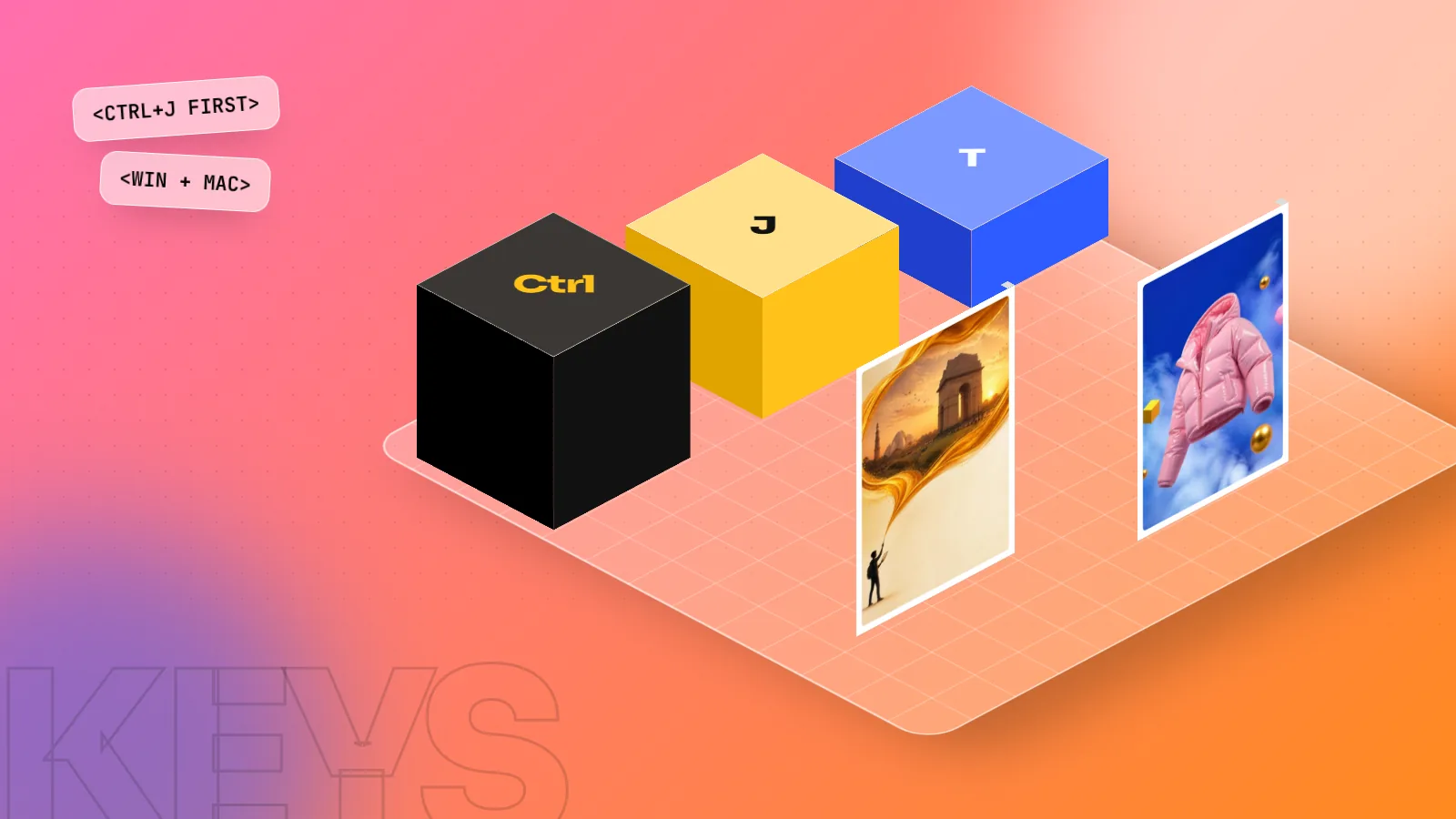
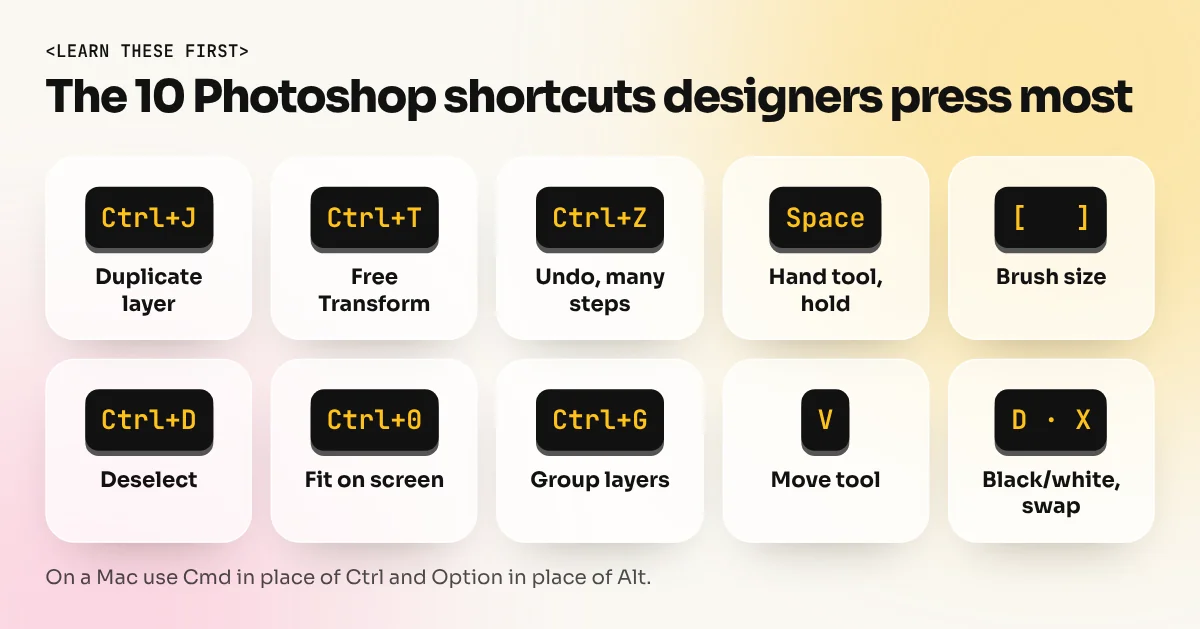
The Photoshop shortcut keys designers use most are V (Move), B (Brush), Ctrl+J (duplicate layer), Ctrl+T (Free Transform), Ctrl+Z (undo), Ctrl+D (deselect), [ and ] (brush size), Ctrl+0 (fit on screen) and Space (Hand tool). On a Mac, use Cmd in place of Ctrl and Option in place of Alt.
Photoshop shortcut keys save more time than any plugin you can buy. A designer who presses Ctrl+J, Ctrl+T and [ ] without thinking finishes a social post in half the time of someone who clicks through menus. This guide lists the shortcuts working designers actually use every day, grouped by job, with Windows and Mac keys side by side. At the end there is a one-week plan to make them stick.
A quick rule before the tables: on a Mac, Cmd replaces Ctrl, Option replaces Alt and Delete replaces Backspace. Single-letter tool keys are the same on both.
Tool shortcuts: one letter each
Every tool in the toolbar has a letter. Press the letter to switch tools. Press Shift with the same letter to cycle through the tools grouped under it, for example Shift+M switches between Rectangular and Elliptical Marquee.
| Key | Tool | What you use it for |
|---|---|---|
| V | Move | Move layers and objects |
| M | Marquee | Rectangle and ellipse selections |
| L | Lasso | Free-hand selections |
| W | Object Selection / Quick Selection / Magic Wand | Select a person or product fast |
| C | Crop | Crop and straighten |
| I | Eyedropper | Pick a colour from the image |
| J | Spot Healing / Healing / Remove | Clean spots and small objects |
| B | Brush | Paint and edit masks |
| S | Clone Stamp | Copy one area over another |
| E | Eraser | Erase pixels (use masks instead where you can) |
| G | Gradient / Paint Bucket | Fill with colour or gradients |
| P | Pen | Draw clean paths and cut-outs |
| T | Type | Add text |
| U | Shapes | Rectangles, ellipses, lines |
| H or Space | Hand | Move around the canvas |
| Z | Zoom | Zoom in, Alt+click to zoom out |
| D | Default colours | Black and white swatches |
| X | Swap colours | Swap foreground and background |
| Q | Quick Mask | Paint a selection |
Tip: hold Space with any tool to get the Hand tool for a moment. Let go and you are back where you were. This one habit saves hundreds of clicks a day.
Layer shortcuts that save the most time
Layers are where most Photoshop time goes. Learn these first.
| Action | Windows | Mac |
|---|---|---|
| New layer | Ctrl+Shift+N | Cmd+Shift+N |
| Duplicate layer (or copy a selection to a new layer) | Ctrl+J | Cmd+J |
| Group layers | Ctrl+G | Cmd+G |
| Ungroup | Ctrl+Shift+G | Cmd+Shift+G |
| Merge down | Ctrl+E | Cmd+E |
| Stamp all visible layers into a new one | Ctrl+Alt+Shift+E | Cmd+Option+Shift+E |
| Create clipping mask | Ctrl+Alt+G | Cmd+Option+G |
| Move layer up or down | Ctrl+] or Ctrl+[ | Cmd+] or Cmd+[ |
| Select layer above or below | Alt+] or Alt+[ | Option+] or Option+[ |
| Layer opacity | Number keys 1 to 0 (with Move tool) | Same |
Ctrl+J is the shortcut designers press most. Before any risky edit, duplicate the layer so the original stays safe. Clipping masks (Ctrl+Alt+G) are how you put a photo inside text or a shape, a look you see on many Delhi café menus and Instagram posts.
Selection and transform shortcuts
| Action | Windows | Mac |
|---|---|---|
| Select all | Ctrl+A | Cmd+A |
| Deselect | Ctrl+D | Cmd+D |
| Reselect last selection | Ctrl+Shift+D | Cmd+Shift+D |
| Inverse selection | Ctrl+Shift+I | Cmd+Shift+I |
| Load layer as selection | Ctrl+click layer thumbnail | Cmd+click layer thumbnail |
| Free Transform (scale, rotate) | Ctrl+T | Cmd+T |
| Repeat last transform on a copy | Ctrl+Alt+Shift+T | Cmd+Option+Shift+T |
| Fill with foreground colour | Alt+Backspace | Option+Delete |
| Fill with background colour | Ctrl+Backspace | Cmd+Delete |
| Fill dialog (Content-Aware and more) | Shift+F5 | Shift+F5 |
Since Photoshop CC 2019, Free Transform keeps proportions by default when you drag a corner. Hold Shift while dragging to stretch freely. Many older tutorials say the opposite, which confuses beginners.
Brush and painting shortcuts
| Action | Windows | Mac |
|---|---|---|
| Smaller or bigger brush | [ or ] | [ or ] |
| Softer or harder brush | Shift+[ or Shift+] | Shift+[ or Shift+] |
| Brush opacity | Number keys 1 to 0 | Same |
| Change size by dragging | Alt+right-click drag | Control+Option drag |
| Draw a straight line | Click, then Shift+click | Same |
| Pick a colour while painting | Hold Alt | Hold Option |
When you paint on a layer mask, press D then X to switch between black (hide) and white (show). Masking a model into a new background for a festive sale banner becomes a two-key rhythm.
Colour and adjustment shortcuts
These open the most common colour fixes. For non-destructive work, use the same adjustments as Adjustment Layers from the Layers panel, but the shortcuts are perfect for quick checks.
| Adjustment | Windows | Mac |
|---|---|---|
| Levels | Ctrl+L | Cmd+L |
| Curves | Ctrl+M | Cmd+M |
| Hue/Saturation | Ctrl+U | Cmd+U |
| Colour Balance | Ctrl+B | Cmd+B |
| Black and white (desaturate) | Ctrl+Shift+U | Cmd+Shift+U |
| Invert | Ctrl+I | Cmd+I |
If you prepare files for print, combine these with a proper colour check. Our guide on CMYK vs RGB explains why colours shift between screen and paper.
View, file and export shortcuts
| Action | Windows | Mac |
|---|---|---|
| Undo (many steps) | Ctrl+Z | Cmd+Z |
| Redo | Ctrl+Shift+Z | Cmd+Shift+Z |
| Fit on screen | Ctrl+0 | Cmd+0 |
| View at 100% | Ctrl+1 | Cmd+1 |
| Zoom in or out | Ctrl++ or Ctrl+- | Cmd++ or Cmd+- |
| Show or hide rulers | Ctrl+R | Cmd+R |
| Show or hide guides | Ctrl+; | Cmd+; |
| Hide all panels | Tab | Tab |
| Cycle screen modes | F | F |
| Image Size | Ctrl+Alt+I | Cmd+Option+I |
| Canvas Size | Ctrl+Alt+C | Cmd+Option+C |
| Save As | Ctrl+Shift+S | Cmd+Shift+S |
| Export As | Ctrl+Alt+Shift+W | Cmd+Option+Shift+W |
| Keyboard Shortcuts dialog | Ctrl+Alt+Shift+K | Cmd+Option+Shift+K |
Since Photoshop CC 2019, Ctrl+Z undoes many steps in a row, just like Word. Older guides that say Ctrl+Alt+Z for multiple undo are out of date.
Before you send any file, press Ctrl+1 and check it at 100 percent. Small problems like rough cut-out edges and blurry text only show at real size.
How to learn Photoshop shortcuts in one week
Do not try to memorise 60 shortcuts in one evening. Learn a few, use them on real work, then add more.
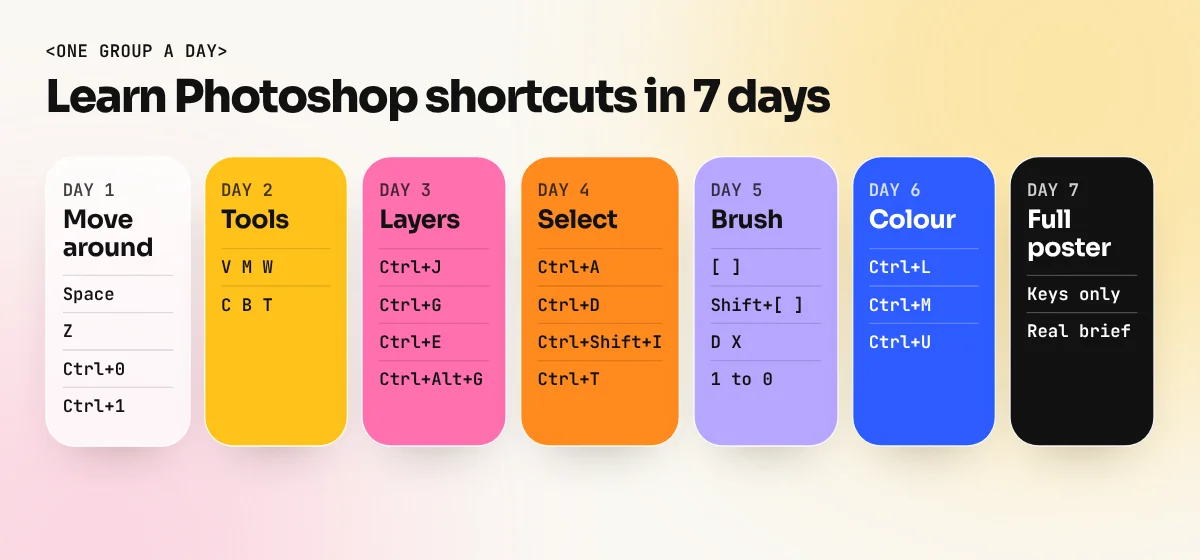
- Day 1: moving around. Space, Z, Ctrl+0, Ctrl+1. Do not touch the zoom menu all day.
- Day 2: tools. V, M, W, C, B, T. Switch tools only with keys.
- Day 3: layers. Ctrl+J, Ctrl+G, Ctrl+E, Ctrl+Alt+G.
- Day 4: selections and transform. Ctrl+A, Ctrl+D, Ctrl+Shift+I, Ctrl+T.
- Day 5: brushes and masks. [ ], Shift+[ ], D, X, number keys.
- Day 6: colour. Ctrl+L, Ctrl+M, Ctrl+U, then rebuild the same fixes as Adjustment Layers.
- Day 7: one full design. Make a sale poster for a local shop using only shortcuts wherever you can.
Stick a small paper list next to your laptop for the week. Once a shortcut feels automatic, cross it off.
If you are setting up a new machine for this practice, our guide to choosing a laptop for graphic design explains how much RAM Photoshop needs to stay smooth.
Shortcuts are speed, not skill
Shortcuts make you faster, but they do not make a design good. Layout, type and colour still decide that. In our Photoshop course students learn the shortcuts inside real briefs: product ads, social posts and photo retouching, so speed and judgement grow together. The 6-month graphic design diploma adds Illustrator, InDesign and portfolio work on top.
Want to know where Photoshop fits next to other tools? Read Photoshop vs Illustrator vs Canva to see which app to open for which job.
Frequently asked questions
How do I see all shortcut keys in Photoshop?
Open Edit > Keyboard Shortcuts, or press Alt+Shift+Ctrl+K (Option+Shift+Cmd+K on Mac). The dialog lists every shortcut for menus, panels and tools and the Summarize button saves the full list as a web page you can print.
Can I change Photoshop shortcut keys?
Yes. In Edit > Keyboard Shortcuts, click any command, press the new keys and save it as your own set. Keep the defaults while you learn, because tutorials and teachers use the default keys.
Why are my Photoshop shortcuts not working?
Common causes are typing in a text layer (press Esc or Ctrl+Enter first), a different keyboard language like Hindi input being active, another app using the same keys, or a changed shortcut set. Check Edit > Keyboard Shortcuts and set it back to Photoshop Defaults.
What is the difference between Ctrl and Cmd shortcuts?
They do the same job. Windows uses Ctrl and Alt, Mac uses Cmd and Option. Backspace on Windows is Delete on a Mac. Single-letter tool keys like V, B and T are the same on both.