How to Design a Poster That People Actually Read
How to design a poster step by step: brief, one idea, headline, layout, colour, type and print-ready files with bleed. With sizes and an Indian example.
To design a poster, first write the one message and the action you want, then choose one strong image or idea. Make the headline readable from a distance, add only key details (date, place, contact), arrange everything on a grid with clear hierarchy and space, use two fonts and a small colour palette, then export a print-ready PDF with bleed.
To design a poster, start with one message, show it with one strong idea, make the headline readable from across the room and add only the details people need to act. A poster has a hard job. People walk past it, see it from a moving auto or scroll past it on a phone. You get about three seconds. This guide shows the full process designers use, from brief to print-ready file, with sizes, layout tips and the mistakes that make posters fail.
What makes a poster work
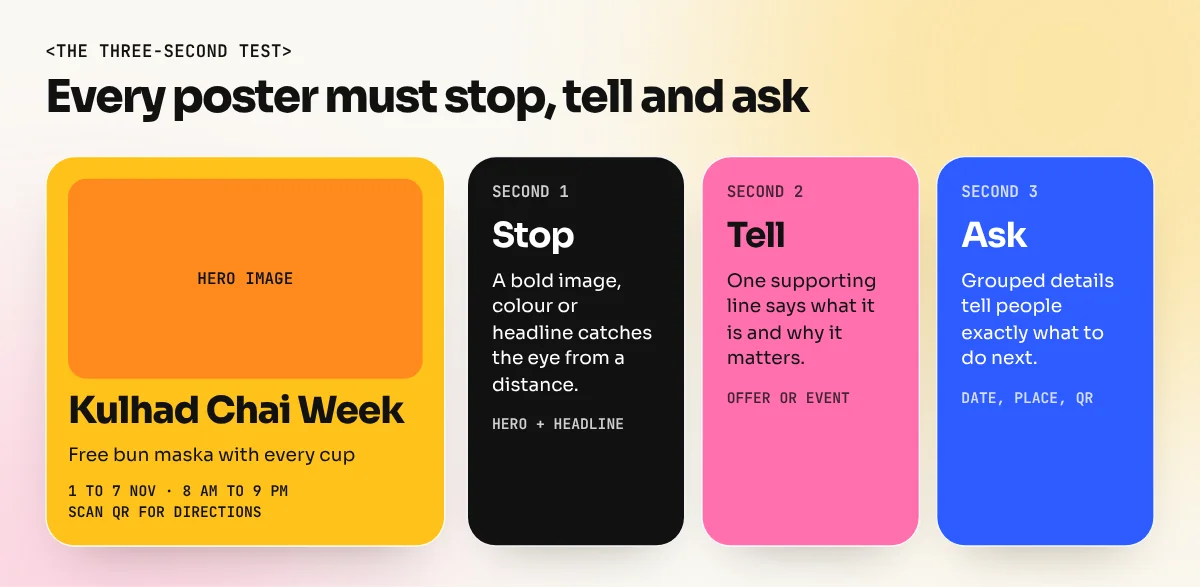
A good poster does three things, in this order:
- Stops people. A bold image, colour or headline that catches the eye from a distance.
- Tells them one thing. What is it? A concert, a sale, an admission open, a cause.
- Tells them what to do. Come on Saturday, scan the QR code, call this number.
Everything on the poster should help one of these three jobs. If an item does not, remove it. Posters fail far more often from too much stuff than from too little.
Step 1: Write the brief in three lines
Before opening any software, answer these on paper:
- Message: in one sentence, what must people know? "Kulhad Chai Week at our café, 1 to 7 November."
- Audience: who is it for? College students near the campus.
- Action: what should they do? Visit and show the poster for a free bun maska.
Also note where the poster will live: a café wall, a college notice board, a hoarding, a metro panel or Instagram. That decides the size, the distance it is read from and how much detail it can hold.
Step 2: Find one big idea
The best posters have one clear visual idea, not five small ones. Sketch ten small thumbnails, each about the size of a matchbox. Small sketches force you to think in big shapes.
Ideas can come from:
- One hero image: a steaming kulhad shot close up.
- A visual twist: chai steam that forms the shape of a city skyline.
- Type as the image: huge letters that fill the poster.
- A bold colour block: one strong colour with a single object.
Pick the thumbnail that still reads clearly when you hold it at arm's length and squint.
Step 3: Choose the size and set up the file
Set up your document at the final size from the start. Here are common sizes:
| Use | Size | Notes |
|---|---|---|
| A3 poster | 297 x 420 mm | Notice boards, shop counters, cafés |
| A2 poster | 420 x 594 mm | Walls, events, college corridors |
| A1 poster | 594 x 841 mm | Exhibitions, large walls, standees |
| Instagram portrait post | 1080 x 1350 px | Digital poster for feeds |
| Instagram story | 1080 x 1920 px | Full-screen vertical poster |
A-series sizes follow the international ISO 216 standard, which is what most Indian printers use. For print, also set:
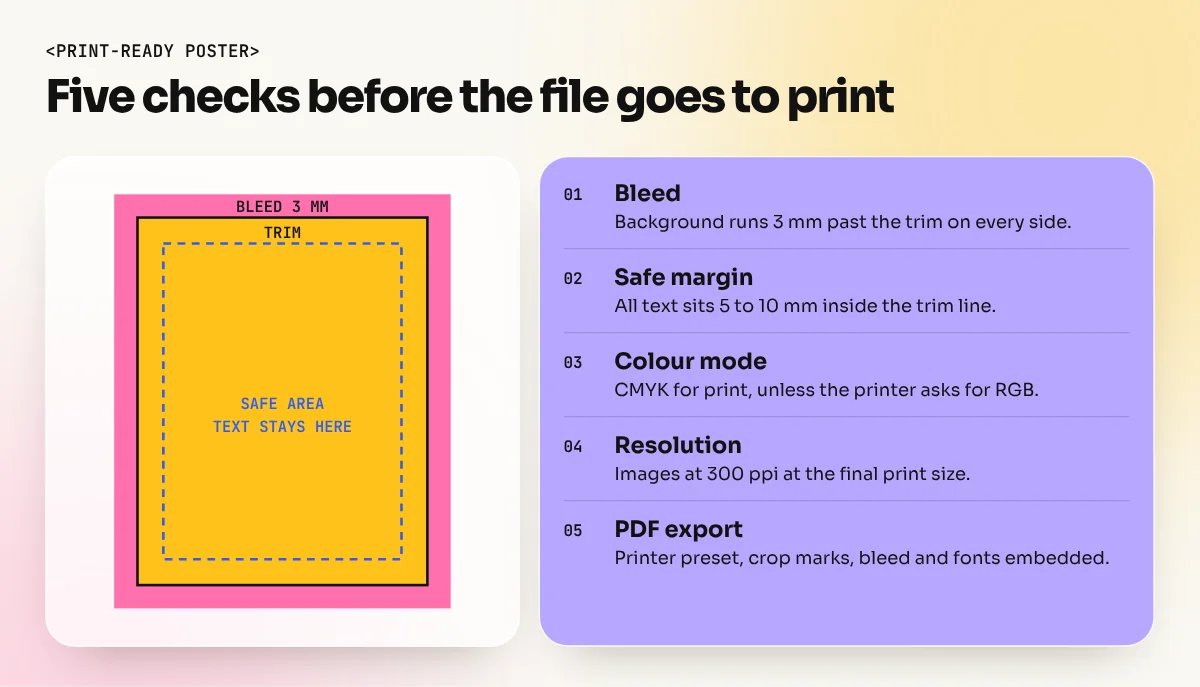
- Colour mode: CMYK, unless your printer asks for RGB.
- Resolution: 300 pixels per inch for images at final size.
- Bleed: usually 3 mm on every side, so background colour runs past the trim line.
- Safe margin: keep text at least 5 to 10 mm inside the trim line.
Always confirm bleed and file type with the printer. Some printers ask for 5 mm bleed on larger formats.
Step 4: Write and size the headline
The headline is the most important part of most posters. Keep it short, ideally three to seven words. "Kulhad Chai Week" beats "We Are Happy to Announce Our Special Chai Celebration Week".
Make it big. A common mistake is a headline that looks large on screen but is small on the wall. Print a test at full size, or at least at 100 percent zoom. Then step back two or three metres. If you cannot read it easily, make it bigger.
Choose a heavy, clear typeface for the headline. Thin script fonts disappear at a distance. Our guide to typography in graphic design explains weight, spacing and readability in detail.
Step 5: Build the layout and hierarchy
Now arrange the parts. Most posters need only three levels:
| Level | Content | How to show it |
|---|---|---|
| 1 | Headline or hero image | Biggest, boldest, top or centre |
| 2 | Supporting line or offer | Medium size, clear contrast |
| 3 | Details: date, time, place, contact, QR | Small, grouped together, bottom area |
Use a simple grid, such as three or four columns with equal margins, to line things up. Group all the small details in one block instead of scattering them in corners. Leave real empty space around the headline so it can breathe. For more on grids and margins, see our guide to layout design rules and examples.
A good check: blur your eyes or shrink the poster to thumbnail size. You should still see one main thing, then a second, then a neat group of details.
Step 6: Pick colour and type
Keep the system small:
- Colours: one main colour, one accent and a neutral (white, black or cream). If the client has brand colours, start with those.
- Fonts: two at most. One bold display or heading font and one clean sans serif for details.
- Contrast: light text on dark backgrounds or dark text on light. Avoid text on busy parts of a photo; add a dark overlay or a solid band if you must.
Colour should match the mood. A Holi event poster can be loud and bright. A classical music evening needs calmer, deeper colours. An admissions poster for a school should feel trustworthy and clear.
Step 7: Add the image and finish the details
If you use a photo, place it at full resolution and crop it with purpose: close crops feel bold, wide crops feel calm. Clean edges, remove distractions and match the colours to your palette. Photoshop is the usual tool for this, including Photoshop Generative Fill and AI image tools for extending a background or removing a stray object. Always check AI results closely for odd details.
Then add the small items:
- Logo, placed where it does not fight the headline.
- QR code at least about 2 cm wide on print and test it with two phones.
- Phone number or web address in a clear font.
- Sponsor logos, if any, grouped in one line at the bottom.
Step 8: Check before you print
Run this checklist every time:
- Spell check every word, especially names, dates and phone numbers.
- Print a small test and view it from a few metres away.
- Convert a copy to greyscale: does the headline still stand out?
- Check that all text is inside the safe margin.
- Check that the background runs fully into the bleed.
- Check image resolution at final size.
- Ask someone who has not seen it: "What is this poster about?" They should answer in a few seconds.
Step 9: Export the right file
For print, export a PDF using your printer's preset, often PDF/X-1a or PDF/X-4, with crop marks and bleed included. Embed or outline fonts so nothing changes on the printer's computer. For social media, export a JPG or PNG in RGB at the exact pixel size.
Keep the working file (PSD, AI or INDD) with linked images saved in one folder, so you can make changes quickly when the client asks.
Common poster mistakes
| Mistake | Fix |
|---|---|
| Too much text | Cut to headline, one line and key details |
| Headline too small or too thin | Use a heavy font and test from a distance |
| Five fonts and eight colours | Two fonts, three colours |
| Details scattered in every corner | Group them in one block |
| Text on a busy photo | Overlay, solid band or move the text |
| No bleed in the file | Add 3 mm bleed and extend the background |
| Low-resolution image from WhatsApp | Ask for the original or use a better image |
Practise with real briefs
Poster design is the best way to practise almost every basic skill at once: idea, type, layout, colour and print. Try three briefs this week: a college fest poster, a local café offer and a social cause poster about saving water. Design each one for A3 print and as an Instagram post.
Photo-led posters are mostly built in Photoshop, so a Photoshop course is a strong starting point. To learn posters together with branding, typography, layout and a full portfolio, the 6-month graphic design diploma takes you through real projects from brief to print.
The bottom line
A poster works when people get the message in three seconds and know what to do next. Write a three-line brief, find one big idea, make the headline readable from a distance, group the details, keep fonts and colours few and send a print-ready PDF with bleed. Follow these nine steps on every poster and your work will look clearer and more professional.
Frequently asked questions
What is the best software to design a poster?
Photoshop is best for photo-heavy posters, Illustrator for vector and type-led posters and InDesign when there is a lot of text. Canva works for quick social posters. The process in this guide is the same in every tool.
What size should a poster be?
Common print sizes in India follow the A series: A3 (297 x 420 mm), A2 (420 x 594 mm) and A1 (594 x 841 mm). For Instagram, a 1080 x 1350 pixel portrait image is a safe choice.
How much text should a poster have?
As little as possible. A headline, one supporting line and the key details are usually enough. If people cannot get the message in about three seconds, cut more text.
What resolution should a poster be for print?
Set images at 300 pixels per inch at the final print size for posters read up close. Very large prints seen from far away can use lower resolution, but ask your printer before you lower it.