The Golden Ratio in Design: Myth, Real Uses and Better Alternatives
The golden ratio in design is about 1.618 to 1. Use it for layouts, type and logos, spot the famous myths and learn when simpler ratios work better.
The golden ratio in design is a proportion of about 1.618 to 1. Designers use it to split layouts, size text and build logo curves so parts feel related. It is a helpful starting point, not a magic rule: many famous "golden ratio" claims are myths and simpler ratios or grids often work just as well.
The golden ratio in design is a proportion of about 1.618 to 1 that designers use to split layouts, size type and draw logo curves. If a line is cut so that the long part divided by the short part equals the whole line divided by the long part, you get the golden ratio. It shows up in every design blog with spirals over the Mona Lisa and the Apple logo. Some of that is true and useful. A lot of it is myth. This guide shows you what the ratio really is, how to use it in your work in five practical ways, which claims you can ignore and which simpler ratios often do the job better.
What the golden ratio is, in plain words
Take a line and cut it into a long part (a) and a short part (b). If a divided by b is the same as (a + b) divided by a, the ratio is golden. That number is about 1.618. Mathematicians write it with the Greek letter phi (φ).
The idea is old. The Greek mathematician Euclid described it in his book Elements about 2,300 years ago, calling it dividing a line in "extreme and mean ratio".
The ratio is closely tied to the Fibonacci sequence, where each number is the sum of the two before it:
| Fibonacci pair | Division | Result |
|---|---|---|
| 5 and 8 | 8 ÷ 5 | 1.600 |
| 8 and 13 | 13 ÷ 8 | 1.625 |
| 13 and 21 | 21 ÷ 13 | 1.615 |
| 21 and 34 | 34 ÷ 21 | 1.619 |
| 34 and 55 | 55 ÷ 34 | 1.618 |
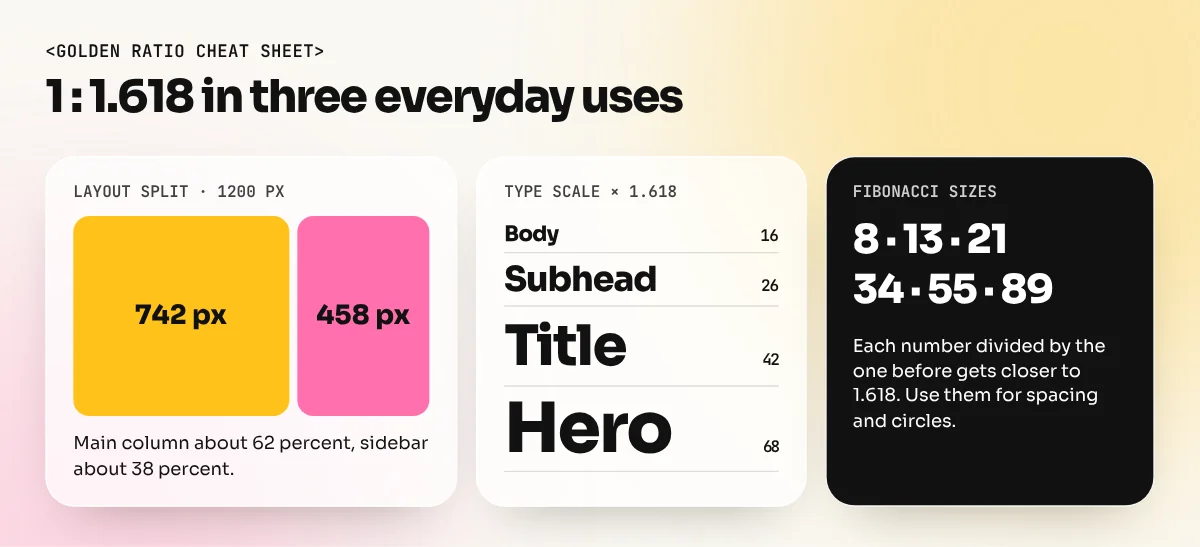
The bigger the pair, the closer you get to 1.618. This is handy for designers: if you need golden sizes without a calculator, use Fibonacci numbers such as 8, 13, 21, 34 and 55.
The golden rectangle and the spiral
A golden rectangle has sides in the ratio 1 to 1.618. For example, 1000 px wide and 618 px tall. Cut a perfect square off one end and the piece left over is another, smaller golden rectangle. Keep cutting squares and draw a quarter circle in each square: you get the famous golden spiral.
Designers use the spiral as a guide for where to place the main subject in a photo or poster, usually near the tight centre of the spiral. In practice, this point lands close to where the rule-of-thirds lines cross, which is a clue we will come back to.
Myths you can safely ignore
Many famous examples are diagrams drawn on top of finished work, long after the artist or designer made it.
| Claim | What we actually know |
|---|---|
| The Parthenon was built on the golden ratio | No ancient record says so. The fit depends on which edges you choose to measure. |
| Leonardo used it in the Mona Lisa | Leonardo left no note saying he did. Rectangles drawn on the painting are placed by the person drawing them. |
| The Apple logo was built from golden circles | The circle overlay went viral years after the logo was made. A 2013 Fast Company article showed circles can be fitted to almost any curve and the logo's curves are not strict circles. |
| Humans always find the golden ratio most beautiful | Stanford mathematician Keith Devlin has called this a myth with no scientific support. |
| Nature is full of perfect golden ratios | Some spirals and plant patterns come close, but nothing real can match an endless decimal exactly, a point Devlin also makes. |
None of this means the golden ratio is useless. It means you should treat it as a design tool, not as proof that a design is good. A logo is not great because it fits circles; it is great because it is simple, clear and memorable.
5 practical ways to use the golden ratio
1. Split a layout
Divide a page or screen into two columns at about 62 percent and 38 percent. For a 1200 px wide web layout, that is a 742 px main column and a 458 px sidebar. For an A4 brochure spread, put the image on the larger part and the text on the smaller part. The split feels less boring than half and half, but more balanced than a tiny sidebar.
2. Build a type scale
Start with body text and multiply by 1.618 for each step up. From a 16 px body size you get about 26 px, 42 px and 68 px. That gives strong contrast between body, subheads and headlines, which suits posters and landing pages. For long reading, such as a book or a blog, the jumps are often too big, so a smaller ratio works better (see the table below).
3. Size spacing and margins
Use the same idea for space. If the gap between paragraphs is 13 px, the gap above a heading could be 21 px and the margin around a section 34 px. Fibonacci numbers keep spacing related and easy to remember.
4. Construct a logo
Many designers sketch a logo first, then refine its curves with circles sized in golden steps (for example, diameters of 21, 34, 55 and 89 units). This makes curves feel consistent. Draw the circles in Illustrator, use the Shape Builder tool to cut and join them, then adjust by eye. The final judge is always your eye, not the circles.
5. Crop photos and place the subject
Lay a golden spiral or a 62/38 grid over a photo and place the main subject near the key point. Photoshop's Crop tool includes a Golden Spiral and a Golden Ratio overlay, so you can try this in seconds.
How to set up a golden rectangle in Illustrator, step by step
- Select the Rectangle tool and click once on the artboard.
- Type a width of 1000 and a height of 618, then click OK.
- Draw a 618 by 618 square and line it up with the left edge. The leftover strip on the right is a new golden rectangle (382 by 618).
- Repeat inside the strip with a 382 by 382 square, then 236, then 146.
- With the Ellipse tool, hold Shift and draw circles that fit the squares. Keep only the quarter arcs to form a spiral.
- Lock this layer and use it as a guide while you design on a layer above.
Save the file as a template so you can reuse the guide in any project. If the pen tool and shape tools are new to you, an Illustrator course covers them properly.
Better alternatives (and when to use them)
The golden ratio is only one of many useful proportions. Designers use others every day, often more.
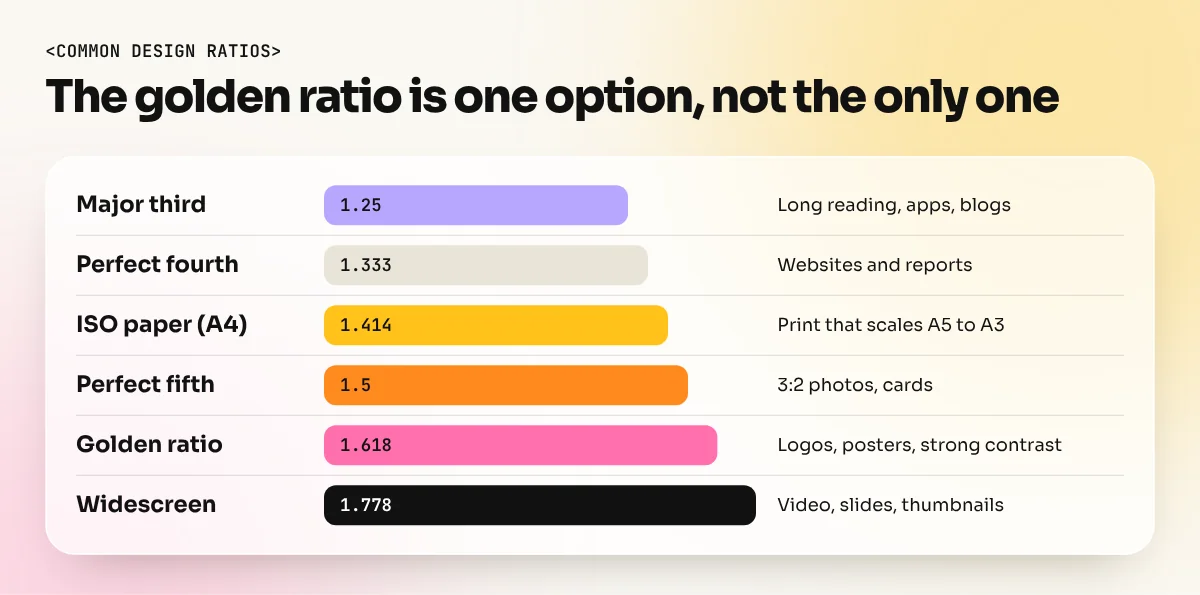
| Ratio | Value | Where you see it | Best for |
|---|---|---|---|
| Major third | 1.25 | Common web type scales | Long reading, apps, blogs |
| Perfect fourth | 1.333 | Type scales, 4:3 screens | Balanced websites and reports |
| ISO paper (A4, A3) | 1.414 | Every A-size sheet of paper | Print layouts that scale between sizes |
| Perfect fifth | 1.5 | 3:2 photos, many cameras | Photo layouts, cards |
| Golden ratio | 1.618 | Logo construction, posters | Strong contrast, single-page designs |
| Widescreen | 1.778 | 16:9 videos and slides | Video thumbnails, presentations |
Two more alternatives matter even more than ratios:
- The rule of thirds. Split the space into three equal parts in each direction and place key items on the lines or crossings. It is quick, needs no calculator and lands close to golden proportions.
- A grid. A 12-column grid with fixed gutters handles most real layouts, from newspapers to websites. Our guide to grid systems in graphic design shows how to set one up.
Golden ratio vs rule of thirds
| Golden ratio | Rule of thirds | |
|---|---|---|
| Split | About 62 / 38 | About 67 / 33 |
| Effort | Needs a calculator or overlay | Can be done by eye |
| Feel | Slightly more natural, less centred | Simple, dependable |
| Best use | Logo construction, precise layouts | Photo crops, quick compositions |
For most beginners, start with the rule of thirds for photos and a grid for layouts. Move to golden proportions when you want a finer level of control, for example when building a logo or a poster where every curve and gap is visible.
Practice tasks
- Two columns: design a 1200 px web banner with a 742 px image area and a 458 px text area. Then make the same banner at 50/50 and compare.
- Type scale: set a poster with type at 16, 26, 42 and 68 px. Then redo it at 16, 20, 25 and 31 px (a 1.25 scale) and see which suits the message.
- Logo curves: draw a simple leaf or drop logo using only golden-sized circles in Illustrator.
- Photo crop: crop five of your phone photos with Photoshop's golden spiral overlay and five with the rule of thirds. Note which you prefer.
These tasks sit inside a bigger skill: arranging items on a page so the eye moves in the right order. Our layout design guide covers margins, alignment and hierarchy. For a structured path through layout, type, logo design and software, the 6-month graphic design diploma builds these skills project by project.
The bottom line
The golden ratio (about 1.618 to 1) is a useful design tool for splitting layouts, scaling type, spacing and building logo curves. It is not a secret formula for beauty and many famous examples are myths drawn on after the fact. Use it when you want related, pleasing proportions, try simpler ratios and grids when they fit better and always let your eye make the final call.
Frequently asked questions
What is the golden ratio number?
About 1.618. The exact value never ends (1.6180339887...), so designers round it to 1.618 or simply 1.6.
Was the Apple logo designed with the golden ratio?
There is no proof. The popular golden-circle diagrams were drawn on top of the logo years later. A 2013 Fast Company article showed that circles can be fitted to almost any curved shape, so the overlay proves nothing.
Is the golden ratio the same as the rule of thirds?
No. The rule of thirds splits a space into three equal parts, a 2 to 1 split. The golden ratio gives a split of about 62 to 38. They look similar, which is why the rule of thirds is often used as an easier stand-in.
Do professional designers use the golden ratio?
Some do, mainly for logo construction, type scales and page proportions. Most daily work uses grids, consistent spacing and visual judgement. The golden ratio is one tool among many.