Illustrator Pen Tool: Master It in 7 Simple Exercises
Illustrator pen tool made easy: how clicks and drags make anchors and curves, the shortcuts that matter, the Curvature tool and 7 practice exercises for beginners.
The Illustrator pen tool (shortcut P) draws vector paths point by point. Click to place a corner anchor, click again for a straight line or click and drag to pull out handles that bend the line into a curve. Close the shape by clicking the first anchor. Use few anchors, place them where curves change direction and edit them with the Direct Selection tool.
The Illustrator pen tool (shortcut P) draws vector paths one anchor point at a time: click to make a corner, click and drag to make a curve. It is the tool behind clean logos, icons, lettering and the vector artwork printers ask for. Most beginners find it frustrating for the first few days, then suddenly it clicks. This guide explains how the pen tool thinks, the shortcuts you really need, when to use the Curvature tool instead and seven exercises that take you from straight lines to tracing a real product.
How the pen tool thinks
Before you draw anything, understand three words. Everything the pen tool does is built from them.
| Term | What it is | What you do with it |
|---|---|---|
| Anchor point | A point on the path | Click to place it. It decides where the line goes |
| Segment | The line between two anchors | Straight or curved, depending on the handles |
| Direction handle | A thin line with a dot that sticks out of an anchor | Its angle sets the direction of the curve, its length sets how much it bends |
There are two kinds of anchor:
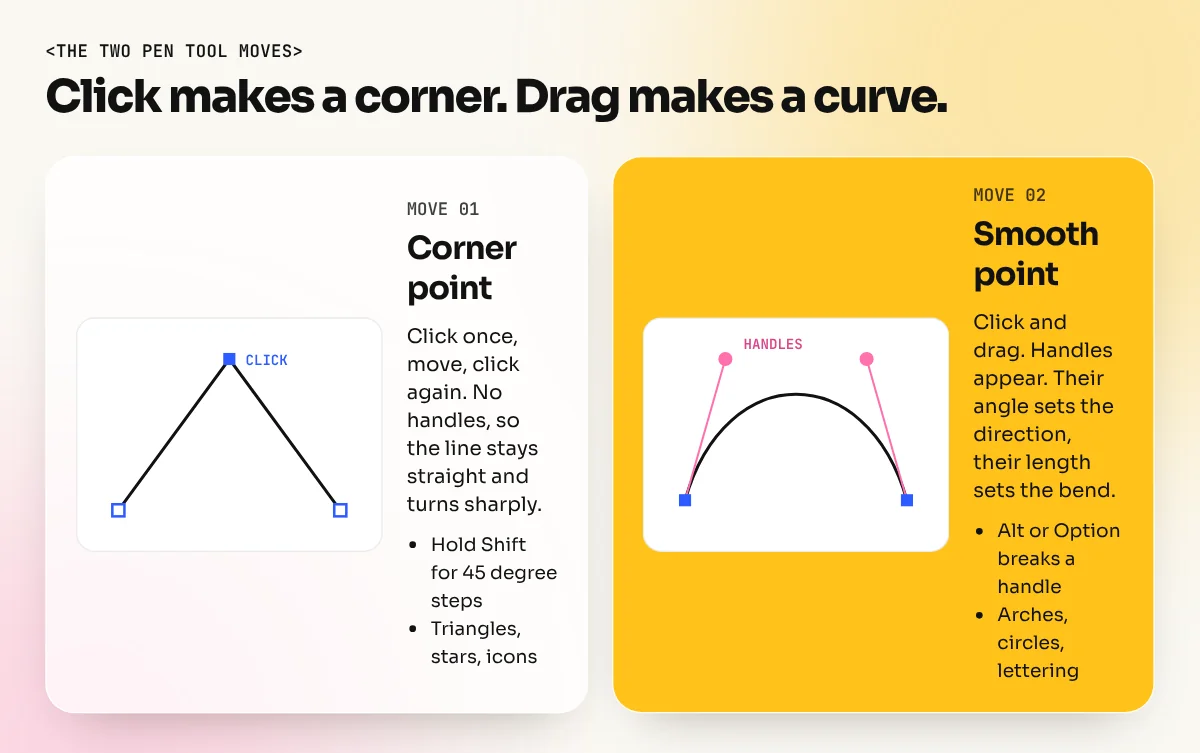
- Corner point: the path changes direction sharply, like the tip of a triangle. You make it by clicking.
- Smooth point: the path flows through without a corner, like the top of a circle. You make it by clicking and dragging. The two handles stay in one straight line.
The basic moves, step by step
These are the moves Adobe's own help pages describe for the Pen tool. Practise them until they feel automatic.
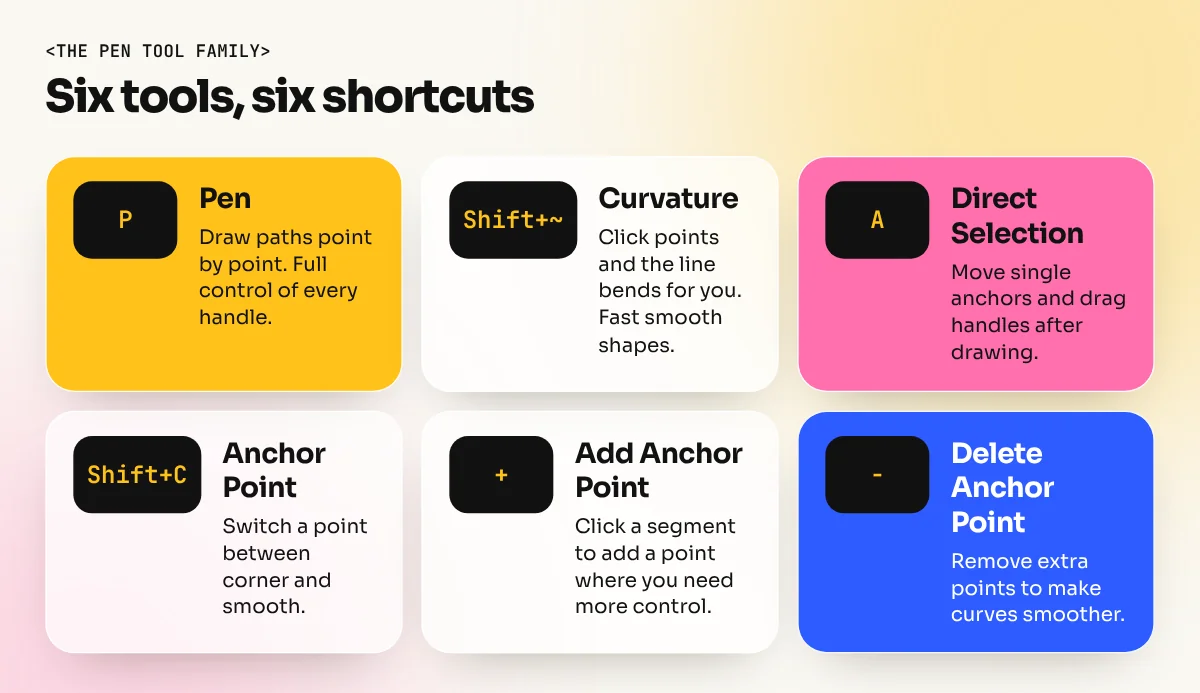
- Select the Pen tool by pressing P.
- Draw a straight line: click once, move the pointer, click again. Hold Shift while clicking to keep the line at multiples of 45 degrees.
- Draw a curve: click and drag. Handles appear. Release, move to the next spot, then click and drag again to set the slope of the curve.
- Close the shape: move over the first anchor point. A small circle appears next to the pointer. Click to close the path.
- Leave the path open: hold Ctrl (Windows) or Cmd (Mac) and click away from the path.
- Edit afterwards: press A for the Direct Selection tool, click an anchor and move it or drag its handles.
Two extra tricks save a lot of time. While you are still dragging out a new anchor, hold the Spacebar to move that anchor to a better spot. And to turn a curve into a sharp corner as you draw, hold Alt (Windows) or Option (Mac) and drag one handle on its own.
Shortcuts that matter
You do not need 50 shortcuts. These cover nearly all pen tool work.
| Shortcut | What it does |
|---|---|
| P | Pen tool |
| + | Add Anchor Point tool |
| - | Delete Anchor Point tool |
| Shift+C | Anchor Point tool (convert between corner and smooth) |
| Shift+~ | Curvature tool |
| A | Direct Selection tool (move single points and handles) |
| Shift (while clicking) | Keep lines at 45 degree steps |
| Alt or Option (while dragging a handle) | Break the handle so each side moves alone |
| Ctrl or Cmd + click | Finish an open path |
| Shift+X | Swap fill and stroke colours |
The Curvature tool: a friendly shortcut
The Curvature tool (Shift+~) sits in the same toolbar group as the Pen tool. Instead of dragging handles, you simply click points and Illustrator bends the line smoothly through them. According to Adobe's help page, you hold Alt or Option and click to add a corner point, double-click any point to switch it between smooth and corner and press Esc to stop drawing.
Use the Curvature tool for flowing shapes like leaves, waves, hair or a chai steam curl. Use the Pen tool when you need exact control, such as a logo where every curve must match a brand guide.
Seven exercises to master the pen tool
Do one exercise a day. Each takes 20 to 30 minutes. Draw with a 1 point black stroke and no fill so you can see the path clearly.
Exercise 1: Straight lines only
Draw a triangle, a star and a zigzag using clicks only. Hold Shift for perfect angles. Goal: get used to clicking, closing a path and finishing an open path.
Exercise 2: One clean curve
Draw a single arch, like the top of a door. Click and drag at the start, then click and drag at the end. Try it three times with different handle lengths and see how the curve changes.
Exercise 3: A circle from four points
Draw a circle using only four anchor points: top, right, bottom and left. Drag each handle horizontally at the top and bottom and vertically at the sides. This teaches the most important rule: anchors go where the curve changes direction, handles follow the direction of the curve.
Exercise 4: Curve into corner
Draw a heart or a leaf. Both mix smooth curves with sharp points. Use Alt or Option to break the handle at the sharp points. This is the move most beginners struggle with, so repeat it until it feels easy.
Exercise 5: Trace a letter
Type a big bold letter "S" or "R", lower its opacity, lock the layer and trace it on a new layer. Lettering is the best pen tool practice because you can compare your path with the original instantly.
Exercise 6: Trace a simple icon
Trace a kulhad, a cycle-rickshaw outline or an autorickshaw from a simple sketch. Place the sketch, set it as a template layer and draw on top. Count your anchor points. Then try again with fewer. Fewer points almost always means a smoother result.
Exercise 7: Trace a product photo
Place a photo of a sneaker, a bottle or a pair of headphones and trace its outline and main details. This is real client work: brands often need clean vector versions of their products for packaging, T-shirts and ads.

The video above, by designer Ogden Designs, shows a simple method that matches these exercises: place anchor points where the curve is flat (its tangent), then pull out handles with the Anchor Point tool and refine them with the Direct Selection tool. Keeping the two handles parallel is what keeps curves smooth.
Common mistakes and how to fix them
| Mistake | What you see | Fix |
|---|---|---|
| Too many anchor points | Wobbly, bumpy curves | Delete extra points, keep only where the direction changes |
| Anchors in the middle of a curve | Curves that look flat or lumpy | Place anchors at the start and end of each curve |
| Handles too long | The path overshoots and loops | Keep handles about one-third of the segment length |
| Fill switched on while drawing | You cannot see the path you are making | Use a stroke only, no fill, until the shape is done |
| Clicking on the path by mistake | Extra points appear | Watch the pointer: a small + means you will add a point |
| Breaking handles on smooth points | A small kink in a curve | Use Shift+C on the anchor and drag again to rejoin the handles |
Where the pen tool fits in real design work
The pen tool is not a party trick. It is used daily for:
- Logos and brand marks, where printers and sign makers need clean vectors that scale from a visiting card to a hoarding.
- Icons and illustrations for apps, websites and social media.
- T-shirt and merchandise art, where screen printers need solid vector shapes. Our T-shirt design guide covers preparing those files.
- Cut-outs in Photoshop, because Photoshop has a Pen tool that works the same way for precise selections.
If you are still deciding which software to learn first, our comparison of Photoshop vs Illustrator vs Canva explains what each tool is best at.
The pen tool and shapes are the first module of our Illustrator course, followed by logos, icons and print-ready vector files. It is also part of the 6-month graphic design diploma, where students use it on logos, packaging and campaign projects.
The bottom line
The pen tool feels hard only because nobody explains the logic: click for corners, drag for curves, use as few points as you can and place them where the direction changes. Learn the handful of shortcuts above, do the seven exercises over one week and you will draw clean vector shapes with confidence.
Frequently asked questions
What is the shortcut for the pen tool in Illustrator?
Press P for the Pen tool. Press + to add an anchor point, - to delete one, Shift+C for the Anchor Point tool, Shift+~ for the Curvature tool and A for the Direct Selection tool to edit points and handles.
How long does it take to learn the pen tool?
Most beginners can draw clean simple shapes after a week of 20 to 30 minutes of daily practice. Tracing logos and lettering smoothly takes a few more weeks. Regular short practice works better than one long session.
Should I use the Pen tool or the Curvature tool?
Learn both. The Curvature tool is faster for smooth, flowing shapes because it bends the line for you. The Pen tool gives you exact control over every handle, which matters for logos, icons and sharp corners.
Why do my pen tool curves look bumpy?
Usually there are too many anchor points, or the handles on a smooth point are not in a straight line. Delete extra points, place anchors only where the curve changes direction and keep the two handles on each smooth point parallel.