YouTube Banner Size 2026: Safe Area and Design Tips
YouTube banner size is 2560 x 1440 pixels with a 1235 x 338 safe area. See device crops, file limits, a free layout method and mistakes to avoid on your channel art.
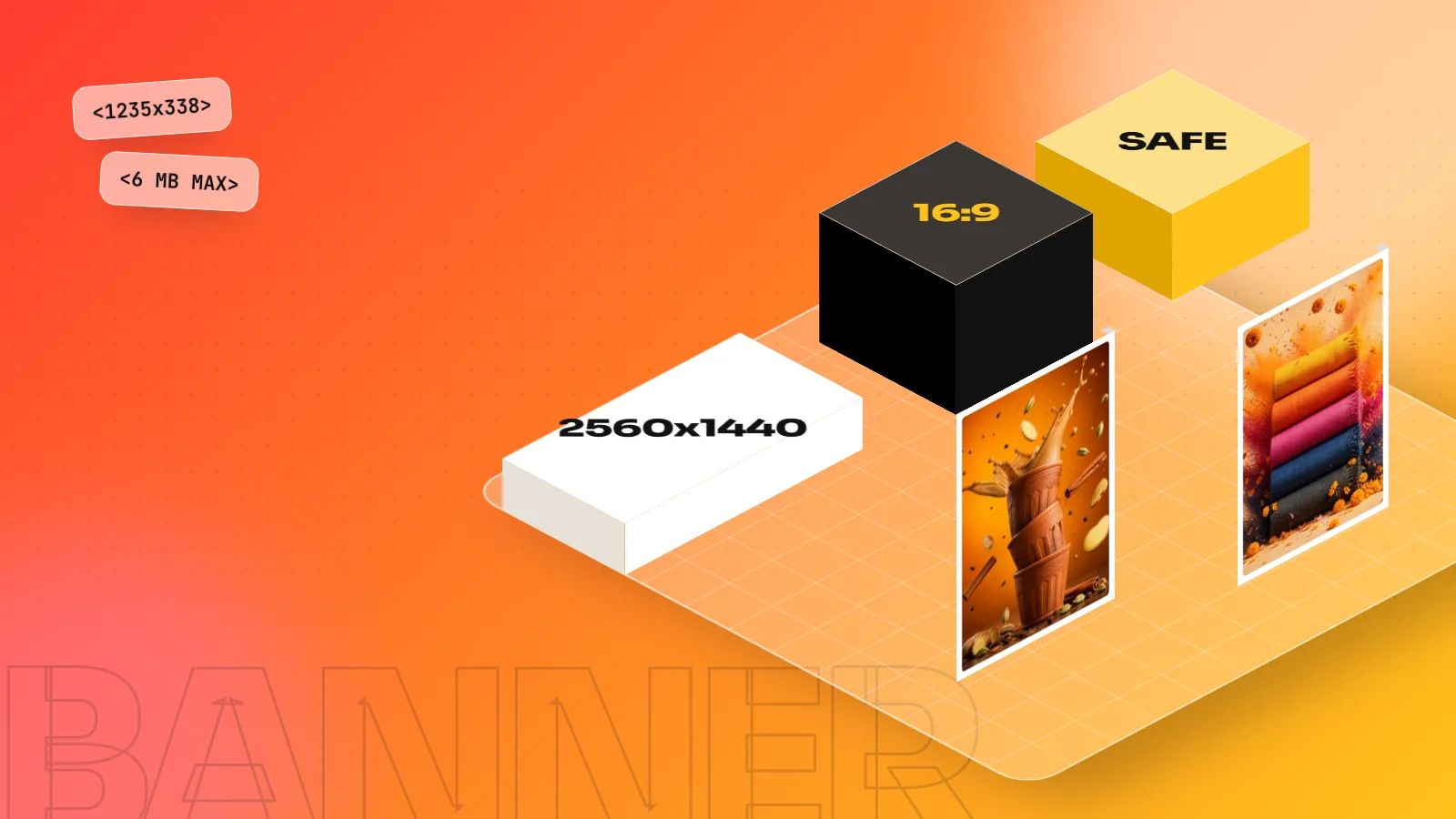
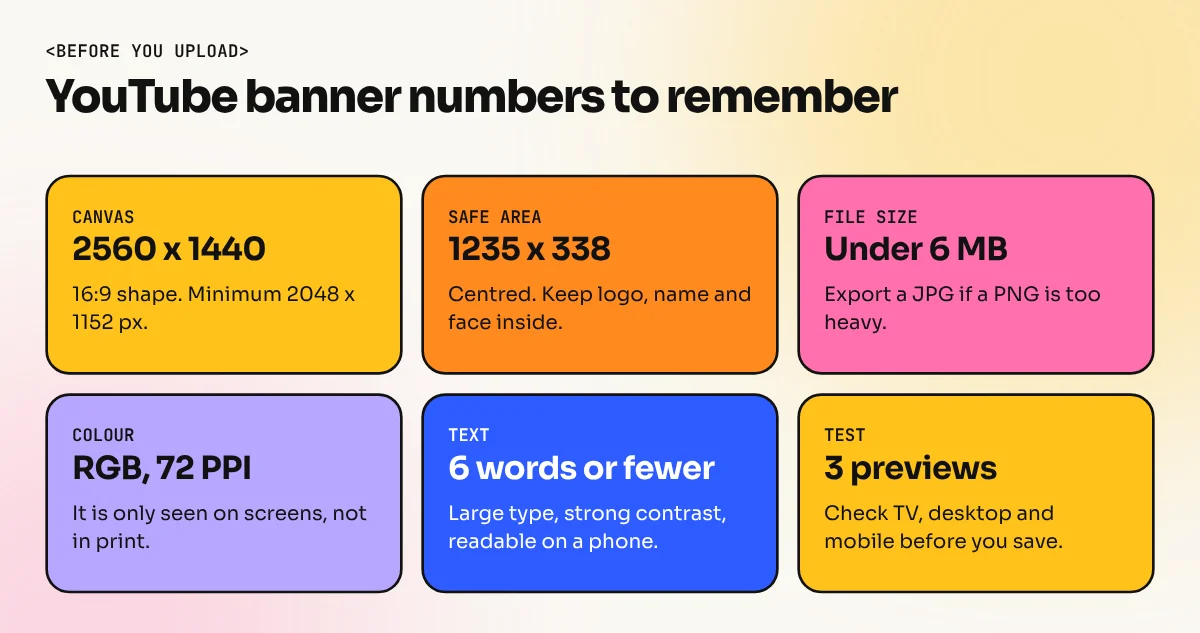
The best YouTube banner size is 2560 x 1440 pixels in a 16:9 shape, with a minimum of 2048 x 1152 pixels and a file under 6 MB. Keep your logo, channel name and face inside the central safe area of 1235 x 338 pixels, because phones and desktops crop the rest.
The right YouTube banner size is 2560 x 1440 pixels in a 16:9 shape. The smallest size YouTube accepts is 2048 x 1152 pixels and the file should stay under 6 MB. The part that matters most is the safe area of 1235 x 338 pixels in the centre. Anything outside that strip can be cut on a phone, a laptop or a TV. This guide gives you every number, a simple layout method and the mistakes that make a channel look unprofessional.
YouTube banner size at a glance
Adobe and Shopify both repeat YouTube's upload sizes. Shopify and Wyzowl give the same safe area. The numbers below come from those guides (2025 and 2026).
| Item | Value |
|---|---|
| Recommended upload size | 2560 x 1440 pixels |
| Minimum size | 2048 x 1152 pixels |
| Aspect ratio | 16:9 |
| Safe area (visible everywhere) | 1235 x 338 pixels, centred |
| Maximum file size | 6 MB |
| File types | JPG or PNG (BMP and still GIF are also accepted) |
| Colour mode | RGB |
YouTube can change these limits, so look at the upload screen once. It shows a live preview and warns you if the file is too big.
What each screen shows
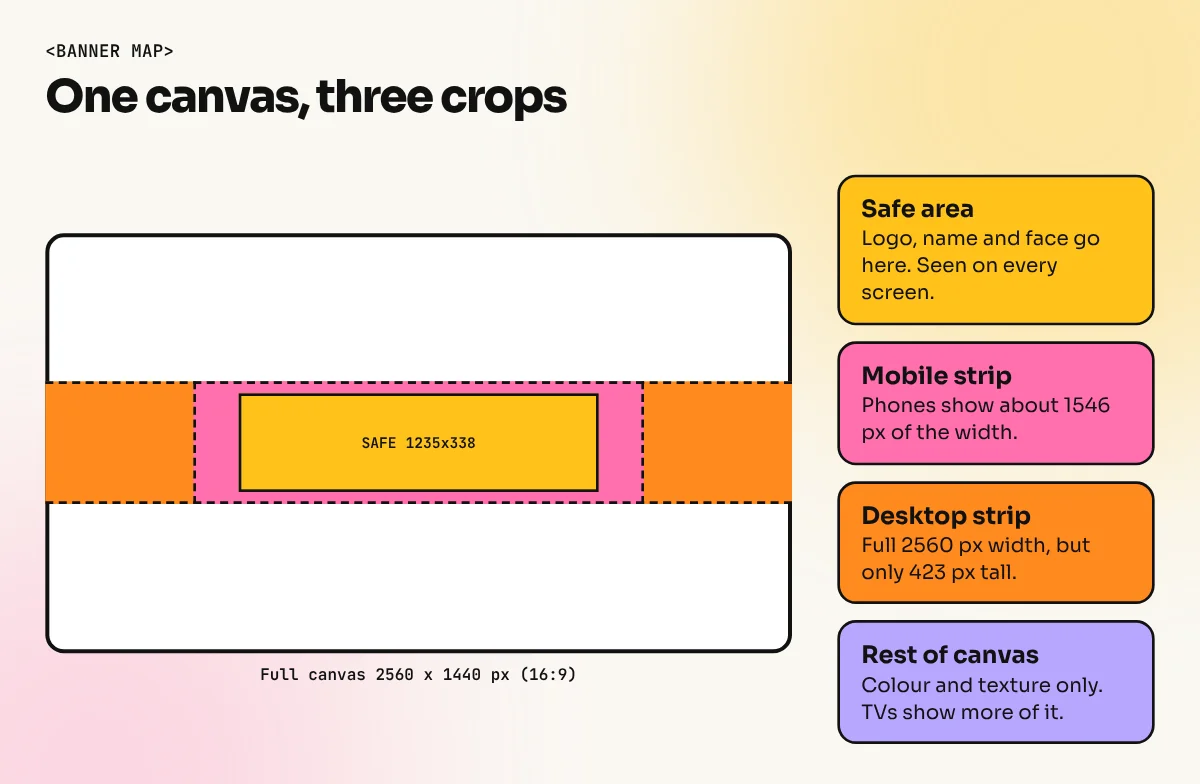
One image is cut in different ways. Shopify's guide describes the crops like this:
| Screen | Visible part of the banner |
|---|---|
| Mobile phone | About 1546 x 423 pixels from the centre |
| Desktop browser | The full 2560 pixel width, 423 pixels tall |
| TV | A much wider slice, so more of your image shows |
| Safe area on every device | 1235 x 338 pixels |
So a phone shows less on the sides and every screen hides the top and bottom of the tall canvas. Think of the banner as a wide letterbox in the middle of a big picture.
How to design a YouTube banner step by step
You can follow these steps in Photoshop or Canva. The idea is the same.
- Open a canvas of 2560 x 1440 pixels in RGB colour. In Photoshop use 72 PPI because the banner is only seen on screens.
- Draw the safe area. Make a box of 1235 x 338 pixels and centre it. Add guides on its edges. In Canva you can use a rectangle with no fill and a thin line, then delete it later.
- Fill the whole canvas with a background. A colour, a photo or a soft gradient works. The background must reach all four edges, because TV screens show more of it.
- Place the channel name or tagline inside the safe area. Keep it short. Six words is a good limit.
- Add one visual idea. Your face, a product, a mascot or a set of tool icons. Keep it near the centre or just inside the safe area.
- Add the upload schedule or social handle in small text. "New video every Friday" tells a new visitor what to expect.
- Export as JPG at high quality and check the size is below 6 MB.
- Upload and read the preview for TV, desktop and mobile. Fix anything that touches an edge.
If you are new to Photoshop, the Photoshop course teaches guides, layers and export settings in the first weeks. If you prefer quick templates, the Canva course covers custom sizes and brand colours.
What to put inside the safe area
The safe area is small, so choose with care. A good banner answers three questions in two seconds: who is this, what do they make and when do they post.
| Element | Where it goes | Tip |
|---|---|---|
| Channel name or logo | Centre of the safe area | Large and high contrast |
| One-line promise | Below or beside the name | "Photoshop tips in Hindi" is better than "Welcome to my channel" |
| Face or product | Inside the safe area | Look towards the text, not away |
| Upload days or social handle | Bottom or right of the safe area | Small but readable on a phone |
| Decorative shapes | Outside the safe area | Safe to be cropped |
Use the outer area for colour, texture and patterns only. If a viewer on a phone sees half a pattern, nothing is lost.
Design tips that make a banner look professional
- Match your thumbnails. Use the same two or three colours and the same typeface you use in your YouTube thumbnail design. A channel that looks like one brand feels more trustworthy.
- Keep text big. Phone screens are small. If you cannot read the tagline from an arm's length on your phone, increase the size.
- Use strong contrast. Light text on a dark patch or dark text on a bright patch. Avoid text over a busy photo.
- Do not use a screenshot of a crowded desktop. Simple banners get remembered.
- Check colour. Pick brand colours that stay bright on both a phone and a laptop. A very light grey on white vanishes on a cheap screen.
- Do not copy another creator. Use your own colours, fonts and photos. Check that every image and font is free for commercial use.
For a deeper look at how colour and size choices work across posts, see our guide to social media post sizes.
Common YouTube banner mistakes
- Designing only at 2560 x 1440 and never testing. The preview in YouTube is the only test that counts.
- Putting the logo on the left edge. The phone crop removes it.
- Using a small image and stretching it. A 1200 pixel photo blown up to 2560 pixels looks soft.
- Too much text. Three lines are enough. Five lines turn into noise at phone size.
- Saving as a huge PNG. A PNG full of photo detail can cross the 6 MB limit. Export a JPG instead.
- Forgetting to update it. If you now teach Illustrator and the banner still says "Gaming videos", visitors leave.
Banner size for print and other platforms
Do not reuse this canvas for other places. A hoarding, a flex banner or a stand banner needs real units like feet or centimetres and a print resolution. Our guide to banner design explains print sizes and file setup. A YouTube banner is made only for screens.
A quick Delhi example
Say a Lajpat Nagar designer posts Photoshop tutorials in Hindi. On the 2560 x 1440 canvas, they fill the whole background with a deep blue and soft yellow shapes. In the 1235 x 338 safe area they place their face on the right and the line "Photoshop seekho Hindi mein" on the left, with "Har Shukrawar" in small type below. On a phone the banner shows face and promise clearly. On a TV the extra blue and yellow fills the wide screen. That is a simple banner that works everywhere.
Checklist before you upload
- The canvas is 2560 x 1440 pixels (or at least 2048 x 1152) in RGB.
- The background fills every edge with no white gaps.
- Logo, name and face sit inside the 1235 x 338 pixel safe area.
- The text is large enough to read on a phone.
- The file is a JPG or PNG under 6 MB.
- The colours and fonts match your thumbnails and channel logo.
- You checked the TV, desktop and mobile preview before pressing save.
Tick all seven and your banner will look sharp on every screen. If you want to design channel art, thumbnails and social posts like a pro, start with the Photoshop course and practise on your own channel from day one.
Frequently asked questions
What is the best YouTube banner size in pixels?
Use 2560 x 1440 pixels (16:9). The smallest size YouTube accepts is 2048 x 1152 pixels. Design on the big canvas but keep the important parts inside the 1235 x 338 pixel safe area in the centre.
Why is my YouTube banner getting cropped?
YouTube shows a different slice of the same image on TV, desktop and mobile. If your text or logo sits outside the central safe area, one of those screens will cut it. Move everything important into the middle strip and test the preview before saving.
Is the YouTube banner size the same as the thumbnail size?
No. A thumbnail is 1280 x 720 pixels and shows one video. The banner is 2560 x 1440 pixels and sits at the top of your channel page. Both are 16:9, but they do different jobs.
Can I make a YouTube banner in Canva or Photoshop?
Yes. In Canva use a custom size of 2560 x 1440 pixels. In Photoshop create a new document of the same size at 72 PPI in RGB colour. Add guides for the safe area before you place any text.