CorelDraw Shortcut Keys Designers Use Every Day
CorelDraw shortcut keys for tools, align, group, zoom and text in one cheat sheet. Learn the keys that save time on visiting cards, flex and logo work.
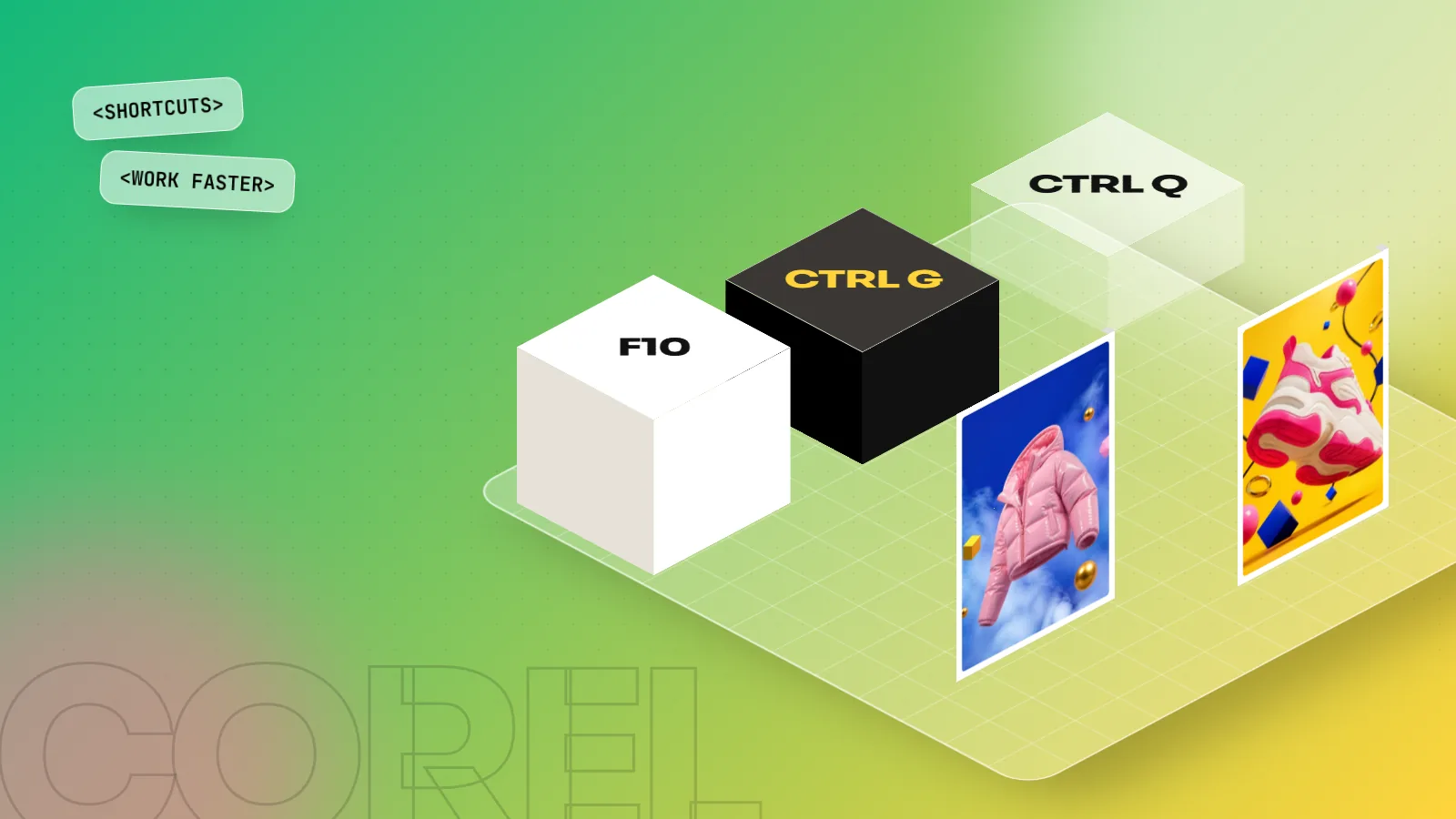
The CorelDraw shortcut keys you will use most are F10 for the Shape tool, F7 for Ellipse, F6 for Rectangle, F8 for Text, Ctrl+G to group, Ctrl+Q to convert to curves, F4 to zoom to all objects and Ctrl+Z to undo. Alignment uses single letters such as E, C and P.
CorelDraw shortcut keys let you draw, align and export faster without hunting through menus. Printing shops in Delhi still run on CorelDraw for visiting cards, flex banners and vinyl cutting, so speed matters on real jobs. This list covers the keys designers use every day, grouped by task. It is based on the complete list of default Windows shortcuts in the CorelDRAW community help pages.
CorelDraw tool shortcut keys
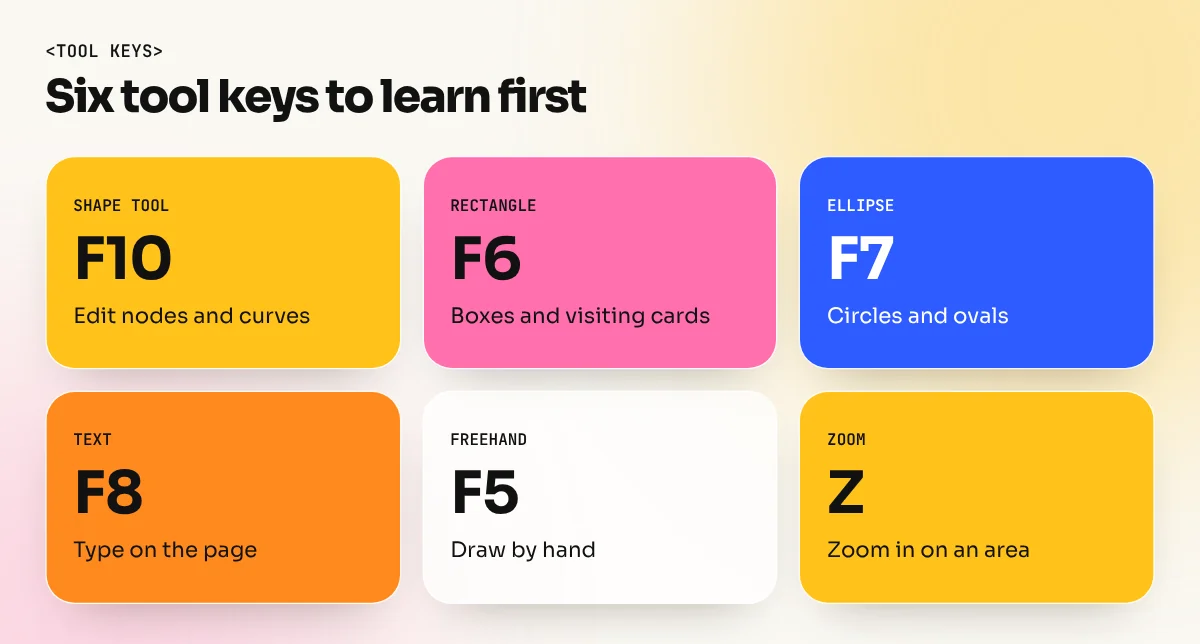
Tool keys switch what your cursor does. Learn these first because you use them all day.
| Key | Tool | Use it for |
|---|---|---|
| F10 | Shape tool | Edit nodes and curves |
| F5 | Freehand tool | Draw lines by hand |
| F6 | Rectangle tool | Boxes and cards |
| F7 | Ellipse tool | Circles and ovals |
| F8 | Text tool | Type on the page |
| Y | Polygon tool | Stars and many sided shapes |
| A | Spiral tool | Spirals |
| I | Artistic Media | Brush strokes |
| G | Interactive Fill | Gradients |
| X | Eraser | Remove parts of a shape |
| H | Hand tool | Pan around the page |
| Z | Zoom tool | Zoom in on an area |
| Ctrl+Space | Toggle Pick state | Switch between your tool and the Pick tool |
The last one is a favourite. You draw with a tool then tap Ctrl+Space to jump to Pick and move the shape. Tap it again to go back.
File and edit shortcuts
These work like most Windows software.
| Key | Action |
|---|---|
| Ctrl+N | New document |
| Ctrl+O | Open |
| Ctrl+S | Save |
| Ctrl+E | Export |
| Ctrl+I | Import a picture or file |
| Ctrl+P | |
| Ctrl+J | Options |
| Ctrl+Z | Undo |
| Ctrl+Shift+Z | Redo |
| Ctrl+R | Repeat the last action |
| Ctrl+C, Ctrl+X, Ctrl+V | Copy, cut and paste |
| Ctrl+A | Select all |
| Ctrl+D | Duplicate |
| Alt+Enter | Object properties |
Ctrl+R is useful when you move or scale an object by a set amount and want the same step again on the next one. Ctrl+D makes a copy with an offset. Pressing the plus key on the number pad makes a copy in the same place.
Arrange shortcuts: group, combine and curves
Most layout and print jobs depend on these.
| Key | Action | When to use it |
|---|---|---|
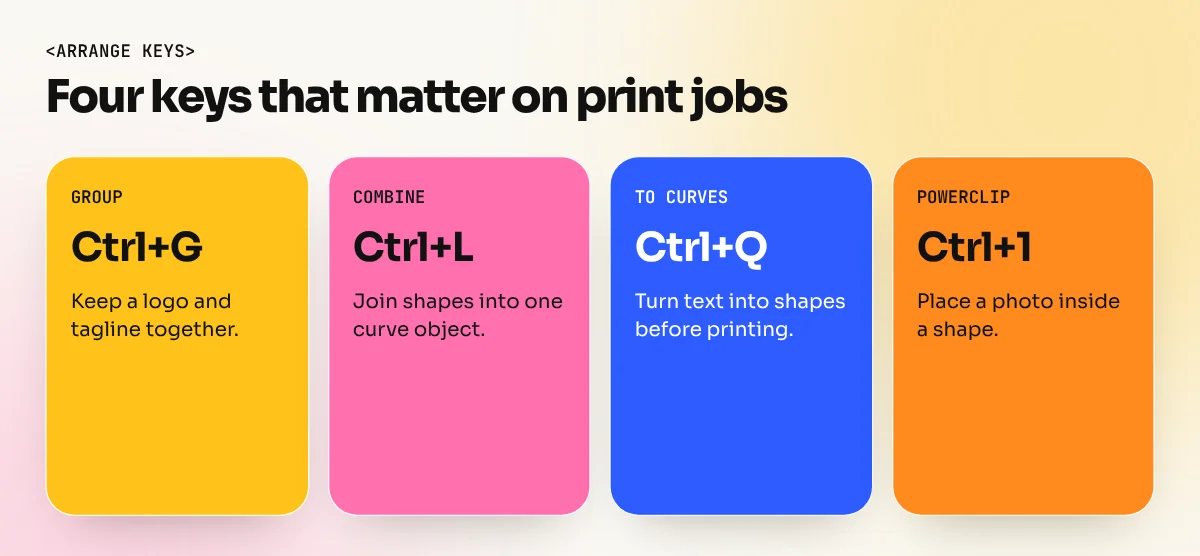
| Ctrl+G | Group | Keep a logo and tagline together |
| Ctrl+U | Ungroup | Edit parts again |
| Ctrl+L | Combine | Join shapes into one curve object |
| Ctrl+K | Break apart | Split a combined object |
| Ctrl+Q | Convert to curves | Turn text into shapes before printing |
| Ctrl+Shift+Q | Convert outline to object | Make a stroke a filled shape |
| Ctrl+1 | Place inside container | Put a photo inside a shape (PowerClip) |
| Ctrl+Shift+D | Step and repeat | Make rows of the same shape |
| Shift+PgUp | To front of layer | Bring an object on top |
| Shift+PgDn | To back of layer | Send an object behind |
| Ctrl+PgUp | Forward one | Move up one step |
| Ctrl+PgDn | Back one | Move down one step |
Ctrl+Q deserves special attention. If you send a file to a press with live text and the printer does not have your font, the design will change. Convert text to curves on a copy of the file and keep the editable original safe. Our print ready file checklist lists other checks before you send a file.
Align and distribute shortcuts
Alignment keys are single letters. Select two or more objects first. The objects line up to the last one you selected, or to the page if you press P.
| Key | Aligns |
|---|---|
| L | Left edges |
| R | Right edges |
| T | Top edges |
| B | Bottom edges |
| E | Centres horizontally |
| C | Centres vertically |
| P | Centre to page |
Add Shift to distribute. For example Shift+E spreads objects with equal centres horizontally and Shift+T works on the top edges. The same list also gives Shift+P and Shift+A for equal horizontal and vertical spacing.
A quick trick for a visiting card: select the logo, press P to centre it on the page then use the arrow keys to nudge it. Plain arrows move the object a small step. Ctrl plus arrow gives a micro nudge and Shift plus arrow gives a super nudge.
View and zoom shortcuts
| Key | Action |
|---|---|
| F4 | Zoom to all objects |
| Shift+F4 | Zoom to page |
| Shift+F2 | Zoom to selected objects |
| F2 | Zoom one shot (click or drag once) |
| F3 | Zoom out |
| F9 | Full screen preview |
| Shift+F9 | Toggle view |
| PgUp and PgDn | Previous and next page |
| Ctrl+Y | Snap to grid on or off |
| Alt+Z | Snap to objects on or off |
| Alt+Shift+D | Dynamic guides on or off |
F9 is great before you send a design to a client. It hides menus and shows the page as a finished piece. Turn snapping on while you build grids and off when you place an object by eye.
Text shortcuts
| Key | Action |
|---|---|
| F8 | Text tool |
| Ctrl+T | Character formatting panel |
| Ctrl+Shift+T | Edit text |
| Ctrl+F8 | Convert between artistic and paragraph text |
| Ctrl+NUMPAD8 | Increase font size |
| Ctrl+NUMPAD2 | Decrease font size |
| Ctrl+M | Turn bullets on |
Artistic text suits logos and short lines. Paragraph text suits long copy in a box. For spacing rules read our guide on kerning, tracking and leading.
Docker shortcuts for size and position
Corel's list also includes shortcuts that open the docker panels where you type exact values.
| Key | Opens |
|---|---|
| Alt+F7 | Position |
| Alt+F8 | Rotate |
| Alt+F9 | Scale |
| Alt+F10 | Size |
| Ctrl+F9 | Contour |
| Ctrl+F7 | Envelope |
| Alt+F3 | Lens |
| Ctrl+F5 | Graphic and text styles |
Use Alt+F10 when a client gives exact sizes such as 3.5 x 2 inches for a visiting card or a flex of a set width. Type the values and apply.
Tips to learn the keys faster
- Learn one group a day. Tools on day one then arrange keys on day two.
- Print the tables above and keep them near your keyboard for a week.
- Use a shortcut every time even if it feels slow at first.
- Do one real job, such as a visiting card, using keys only.
- Check the list against your own version. Corel updates the program and a few keys can differ. CorelDraw also lets you customise shortcuts in its options.
If you also use other design software, compare with the Illustrator shortcut keys and the Photoshop shortcut keys. Many ideas match. Not sure which program to pick? Read CorelDRAW vs Illustrator.
Learn CorelDraw with practice
Shortcuts stick when you use them on real work such as logos, cards, standees and flex. Our CorelDRAW course teaches these jobs step by step. If you want a wider base in design, see the 6-month graphic design diploma.
Start with five keys today: F10, Ctrl+G, Ctrl+Q, P and F4. Add more each week and your speed will rise.
Frequently asked questions
What is the shortcut key to convert text to curves in CorelDraw?
Press Ctrl+Q with the text selected. Do this before sending a file to a printer so that the font does not change on another computer.
How do I group and ungroup objects in CorelDraw?
Select the objects and press Ctrl+G to group them. Press Ctrl+U to ungroup. Ctrl+L combines objects into one curve and Ctrl+K breaks them apart.
How do I align objects to the page centre in CorelDraw?
Select the objects and press P. This is the Center to Page alignment key on Corel's shortcut list. E centres objects horizontally and C centres them vertically.
Can I change CorelDraw shortcut keys?
Yes. CorelDraw has a customisation option in its settings where you can see and change the key assigned to a command. Keep a note of your changes if you work on shared computers.