Illustrator Shortcut Keys Designers Use Every Day (Windows and Mac)
Illustrator shortcut keys for Windows and Mac in clear tables: tools, selection, layers, view and path work. Includes a one-week plan to learn them fast.

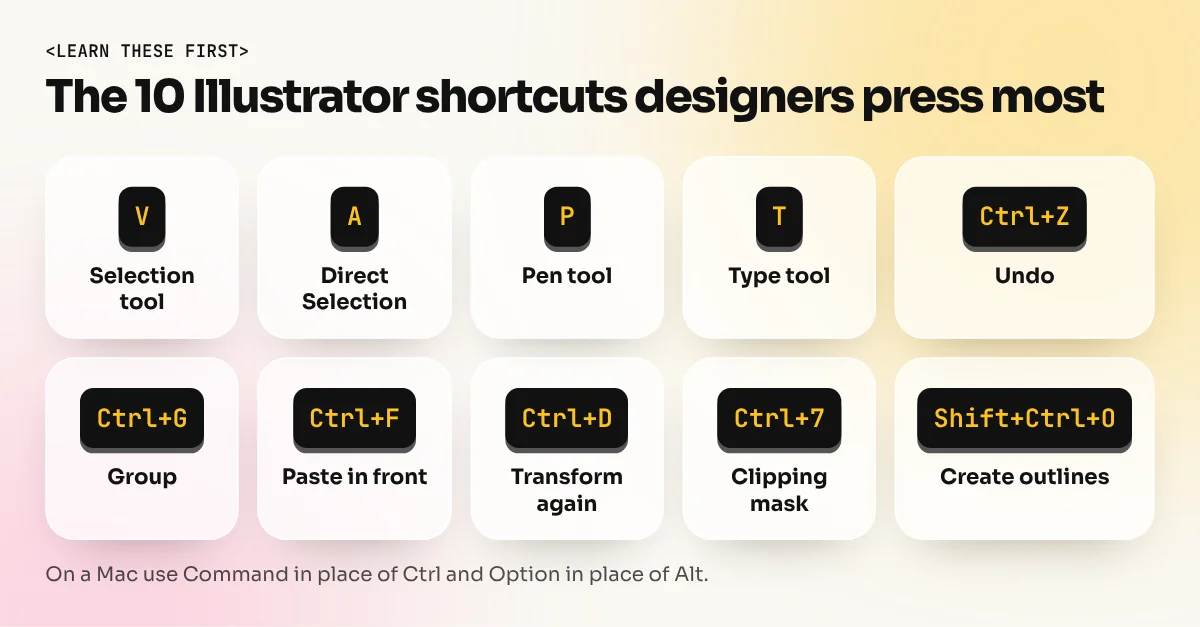
The Illustrator shortcut keys designers use most are V (Selection), A (Direct Selection), P (Pen), T (Type), M (Rectangle), L (Ellipse), Ctrl+G (group), Ctrl+Z (undo), Ctrl+C then Ctrl+F (paste in front) and Shift+Ctrl+O (create outlines). On a Mac, use Command in place of Ctrl and Option in place of Alt.
Illustrator shortcut keys turn a slow, click-heavy workflow into a fast one. A designer who presses V, A and P without looking works at twice the speed of someone who hunts in the toolbar. This guide lists the shortcuts working designers use every day, with Windows and Mac keys side by side. The keys come from Adobe's default keyboard shortcut list. At the end there is a one-week plan to make them stick.
First, the rule that covers most of the page: on a Mac, Command replaces Ctrl and Option replaces Alt. Single-letter tool keys are the same on both.
Tool shortcuts: one key each
Every main tool has a key. Press the key to switch tools. Many designers learn these ten first.
| Key | Tool | What you use it for |
|---|---|---|
| V | Selection | Move and resize whole objects |
| A | Direct Selection | Move single points and handles |
| P | Pen | Draw straight and curved paths |
| T | Type | Add and edit text |
| M | Rectangle | Boxes, buttons, cards |
| L | Ellipse | Circles and ovals |
| B | Paintbrush | Brush strokes |
| N | Pencil | Freehand lines |
| R | Rotate | Turn an object around a point |
| S | Scale | Resize from a point |
More tool keys worth knowing
| Key | Tool | Why it helps |
|---|---|---|
| Shift+M | Shape Builder | Merge and cut overlapping shapes fast |
| Shift+C | Switch to Anchor Point tool | Turn a smooth point into a corner |
| Shift+~ | Curvature | Draw curves without handles |
| + and - | Add and Delete Anchor Point | Add or remove points on a path |
| E | Free Transform | Skew, distort and resize together |
| I | Eyedropper | Copy colour and style |
| G | Gradient | Edit gradients on the artboard |
| W | Blend | Make steps between two objects |
| Shift+W | Width | Make a stroke thicker or thinner in parts |
| C | Scissors | Cut a path at a point |
| Shift+O | Artboard | Add or resize artboards |
| H and Z | Hand and Zoom | Move around and zoom |
If you are still learning the pen, read how to master the Illustrator pen tool in 7 exercises after this page. The P, A, + and - keys do most of the work there.
Edit shortcuts: undo, group, paste
| Job | Windows | Mac |
|---|---|---|
| Undo | Ctrl+Z | Command+Z |
| Redo | Shift+Ctrl+Z | Shift+Command+Z |
| Select all | Ctrl+A | Command+A |
| Deselect | Shift+Ctrl+A | Shift+Command+A |
| Paste in front | Ctrl+F | Command+F |
| Paste at back | Ctrl+B | Command+B |
| Paste in place | Shift+Ctrl+V | Shift+Command+V |
| Group | Ctrl+G | Command+G |
| Ungroup | Shift+Ctrl+G | Shift+Command+G |
| Transform again | Ctrl+D | Command+D |
Two of these deserve a special mention. Paste in front (Ctrl+F) puts a copy exactly on top of the original, so Ctrl+C then Ctrl+F is the fastest way to make a duplicate in the same spot. Transform again (Ctrl+D) repeats your last move, rotate or scale. Rotate one petal, press Ctrl+D and a flower builds itself.
To duplicate while moving, hold Alt (Option on a Mac) and drag with the Selection tool.
Arrange, lock and hide objects
Layers get messy fast on a logo or a poster. These shortcuts keep control.
| Job | Windows | Mac |
|---|---|---|
| Bring forward | Ctrl+] | Command+] |
| Bring to front | Shift+Ctrl+] | Shift+Command+] |
| Send backward | Ctrl+[ | Command+[ |
| Send to back | Shift+Ctrl+[ | Shift+Command+[ |
| Lock selection | Ctrl+2 | Command+2 |
| Release all locks | Alt+Ctrl+2 | Option+Command+2 |
| Hide selection | Ctrl+3 | Command+3 |
| Show all | Alt+Ctrl+3 | Option+Command+3 |
Path and logo shortcuts
These are the keys behind clean logo and icon work.
| Job | Windows | Mac |
|---|---|---|
| Create outlines (text to shapes) | Shift+Ctrl+O | Shift+Command+O |
| Make a clipping mask | Ctrl+7 | Command+7 |
| Release a clipping mask | Alt+Ctrl+7 | Option+Command+7 |
| Make a compound path | Ctrl+8 | Command+8 |
| Release a compound path | Alt+Shift+Ctrl+8 | Option+Shift+Command+8 |
| Join selected paths | Ctrl+J | Command+J |
| Average selected paths | Alt+Ctrl+J | Option+Command+J |
Create outlines turns live text into shapes. Do it on a copy before you send a logo or a print file, so the printer does not need your font. See the print ready file checklist for the other steps.
View and guide shortcuts
| Job | Windows | Mac |
|---|---|---|
| Zoom in | Ctrl+= | Command+= |
| Zoom out | Ctrl+- | Command+- |
| Zoom to 100% | Ctrl+1 | Command+1 |
| View all artboards | Ctrl+Alt+0 | Command+Option+0 |
| Toggle Outline and Preview | Ctrl+Y | Command+Y |
| Show or hide guides | Ctrl+; | Command+; |
| Make guides from an object | Ctrl+5 | Command+5 |
| Show or hide smart guides | Ctrl+U | Command+U |
| Show grid | Ctrl+' | Command+' |
| Snap to grid | Shift+Ctrl+' | Shift+Command+' |
| Show or hide bounding box | Shift+Ctrl+B | Shift+Command+B |
To fit your artwork in the window, double-click the Hand tool. Hold Shift while you drag a shape to keep its sides equal, so a rectangle becomes a square and an ellipse becomes a circle.
Press Ctrl+Y when a path looks wrong. Outline view shows only the lines, so you can spot stray points and overlapping shapes quickly.
A one-week plan to learn them
Do not try to remember the whole page. Learn one group a day while you make something real.
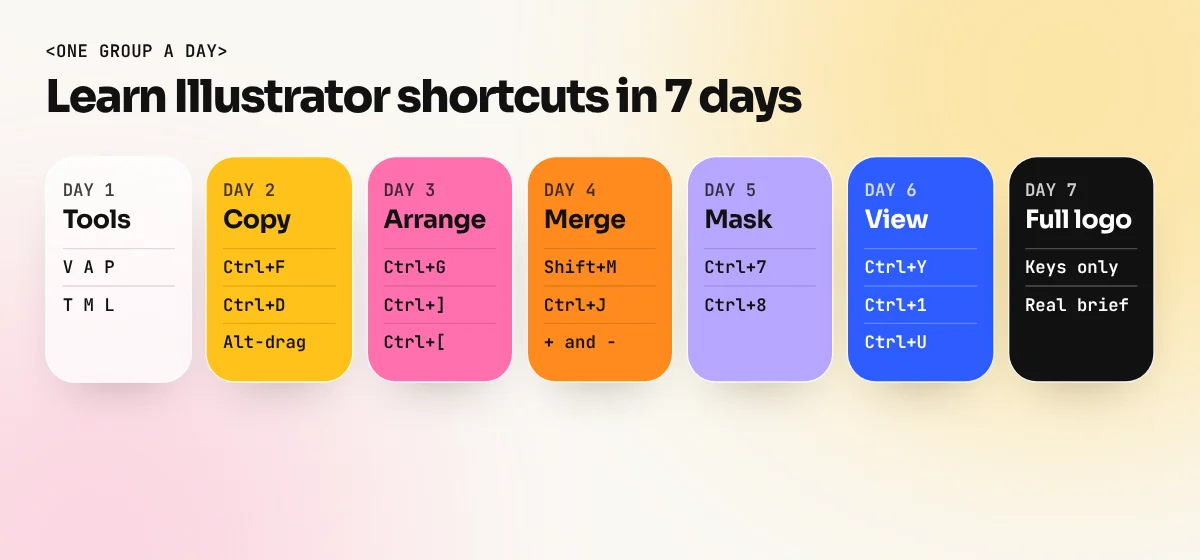
- Day 1: V, A, P, T, M, L. Draw a chai cup icon without touching the toolbar.
- Day 2: Ctrl+C, Ctrl+F, Ctrl+D and Alt-drag. Build a pattern of repeating shapes.
- Day 3: Ctrl+G, Ctrl+] and Ctrl+[. Stack and group a simple badge.
- Day 4: Shift+M, Ctrl+J and the + and - keys. Merge shapes into one icon.
- Day 5: Ctrl+7 and Ctrl+8. Cut a photo inside a shape.
- Day 6: Ctrl+Y, Ctrl+1, Ctrl+; and Ctrl+U. Clean up the badge with guides.
- Day 7: Make a visiting card for a small Delhi shop using keys only.
Stick a printed cheat sheet next to your screen for the first week. After seven days, most of these keys sit in your fingers.
Where to practise next
Shortcuts help most when you practise them on real briefs. In our Illustrator course you work on logos, icons and print layouts with a trainer who corrects your workflow as you go. The same skills run through the 6-month graphic design diploma, next to Photoshop and InDesign. If you are new to the software, start with Adobe Illustrator for beginners. If you also use Photoshop, the Photoshop shortcut keys guide covers that side.
The bottom line
You do not need every Illustrator shortcut. Learn the tool keys, the paste and group keys and the path keys first. Practise one group a day and you will work faster within a week. Open Edit > Keyboard Shortcuts any time to see the full list for your version.
Frequently asked questions
How do I see all shortcut keys in Illustrator?
Go to Edit > Keyboard Shortcuts. The dialog lists every tool, menu and panel shortcut and lets you search them. Adobe also publishes the full default list on its help pages.
Can I change Illustrator shortcut keys?
Yes. In Edit > Keyboard Shortcuts, pick a command, type the new keys and save the set under your own name. Keep the defaults while you learn, because teachers and tutorials use them.
Why are my Illustrator shortcuts not working?
The usual reasons are an active text box (press Esc first), a different keyboard language such as Hindi input, a changed shortcut set or another app using the same keys. Reset the set to Illustrator Defaults in Edit > Keyboard Shortcuts.
Are Illustrator shortcut keys the same on Windows and Mac?
Single-letter tool keys such as V, A and P are the same. For the rest, Ctrl on Windows becomes Command on a Mac and Alt becomes Option.