Adobe Illustrator for Beginners: Your First 10 Tools
Adobe Illustrator for beginners: what vectors are, how to set up your first file, the 10 tools to learn first with shortcuts and a 7-day practice plan.
Adobe Illustrator for beginners starts with one idea: everything is a vector shape made of points and paths, so it scales to any size. Learn ten tools first: Selection (V), Direct Selection (A), Rectangle (M), Ellipse (L), Pen (P), Type (T), Shape Builder (Shift+M), Eyedropper (I), Artboard (Shift+O) and the Pathfinder panel.
Adobe Illustrator for beginners comes down to three things: understand that you are drawing vectors, set up your file correctly and learn about ten core tools before anything else. Illustrator is the app designers use for logos, icons, visiting cards, packaging, posters and illustrations, because vector artwork stays sharp at any size, from a phone screen to a hoarding on the Ring Road. This guide explains vectors in plain words, walks you through your first file, covers the first ten tools with their shortcuts and gives you a seven-day practice plan.
You do not need to learn all of Illustrator's tools. Most designers use a small set every day. Learn those well and the rest can wait.
What Illustrator does (and what it does not)
Illustrator makes vector graphics. A vector is a shape described by points and curves, not by pixels. Zoom in as much as you like and the edge stays smooth. Photoshop, in contrast, mainly works with raster images made of pixels, which is ideal for photos.
| Task | Best app | Why |
|---|---|---|
| Logo, icon, monogram | Illustrator | Must scale from favicon to signboard |
| Visiting card, letterhead, label | Illustrator | Crisp text and shapes for print |
| Flat illustration, pattern, sticker | Illustrator | Clean shapes, easy colour changes |
| Photo editing, retouching | Photoshop | Pixel-level control over photos |
| Many-page brochure or magazine | InDesign | Built for pages, text flow and styles |
| Quick social post from a template | Canva | Fast, but less control |
For a fuller comparison, read our guide to Photoshop vs Illustrator vs Canva.
Getting Illustrator and opening your first file
Illustrator is sold as part of Adobe Creative Cloud on a subscription. Adobe's help pages say you can try Creative Cloud apps for 7 days before a paid plan starts. Always download from Adobe's official website; "free full version" downloads from other sites are pirated and often carry malware.
Once installed, set up your first document:
- Open Illustrator and choose New file (Ctrl+N on Windows, Cmd+N on Mac).
- Pick the Print tab for cards and posters, or Web or Mobile for screens.
- Set the size. A standard Indian visiting card is often 3.5 x 2 inches.
- Set Colour mode: CMYK for print, RGB for screen. Our guide to CMYK vs RGB explains why this matters.
- For print, add bleed, usually 3 mm on each side, as your printer asks.
- Click Create and save right away as an .ai file (Ctrl+S or Cmd+S).
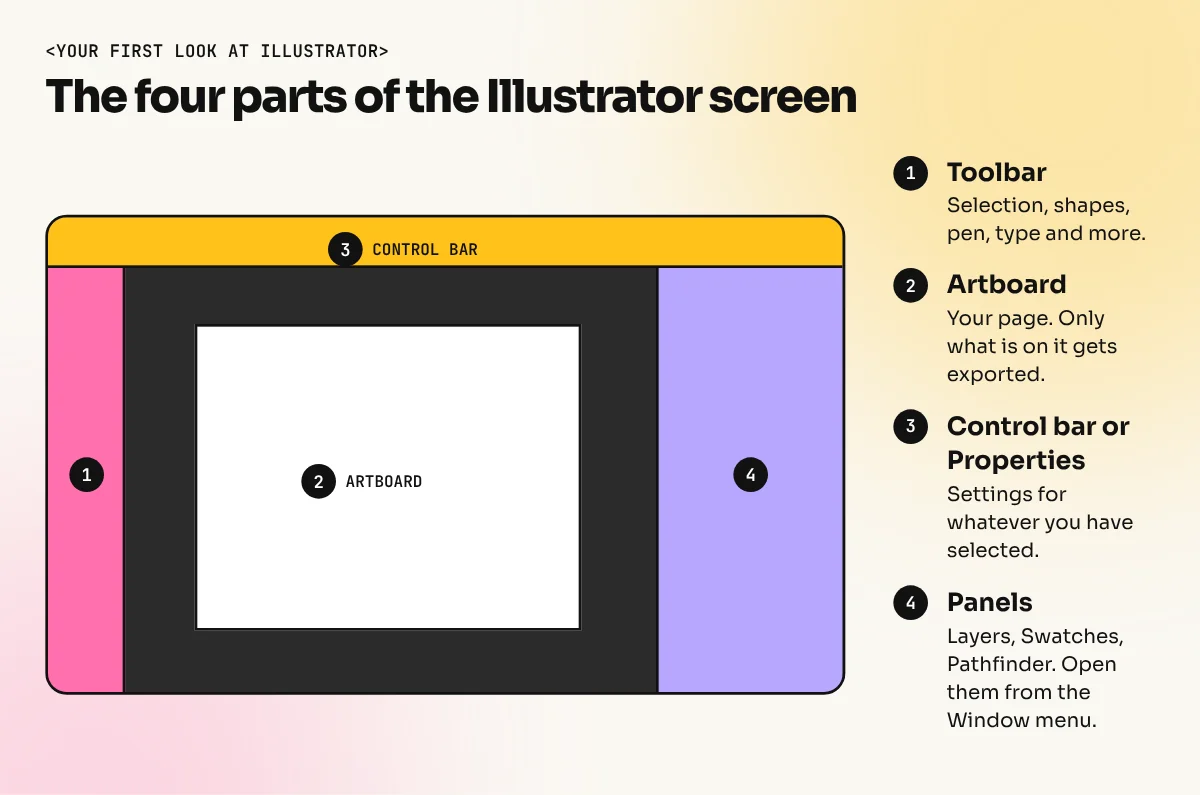
The screen has four parts. The toolbar on the left holds the tools. The artboard in the middle is your page. The control bar or Properties panel shows settings for whatever you have selected. Panels on the right, like Layers, Swatches and Pathfinder, open from the Window menu.
Your first 10 tools
These ten cover most beginner work. Shortcuts are the same on Windows and Mac unless noted.
| # | Tool | Shortcut | What you use it for |
|---|---|---|---|
| 1 | Selection | V | Select, move and scale whole objects |
| 2 | Direct Selection | A | Select and move single anchor points |
| 3 | Rectangle | M | Rectangles and squares (hold Shift), rounded corners with the corner widgets |
| 4 | Ellipse | L | Circles (hold Shift) and ovals |
| 5 | Pen | P | Draw custom paths and curves point by point |
| 6 | Type | T | Add text; click for a line, drag a box for a paragraph |
| 7 | Shape Builder | Shift+M | Merge or cut overlapping shapes by dragging across them |
| 8 | Eyedropper | I | Copy colour and style from one object to another |
| 9 | Artboard | Shift+O | Add, resize and name pages in one file |
| 10 | Pathfinder panel | Window menu | Unite, minus front, intersect and divide shapes |
A few habits make these tools easier:
- Hold Shift while drawing or scaling to keep proportions.
- Hold Alt (Option on Mac) while dragging an object to make a copy.
- Press Ctrl+Y (Cmd+Y) for Outline view, which shows only the paths. Great for finding hidden or stray points.
- Press Ctrl+Z (Cmd+Z) to undo. Use it without fear.
- Hold the spacebar and drag to move around the artboard.
The pen tool is the one most beginners find hard. Do not let it stop you. Start with shapes and the Shape Builder, then practise the pen with our Illustrator pen tool exercises.
Fill, stroke and colour basics
Every shape has two colour settings. Fill is the colour inside. Stroke is the outline. You set both at the bottom of the toolbar or in the Properties panel.
- Press X to switch between fill and stroke.
- Press D for the default (white fill, black stroke).
- Press / to set the active one to none.
- Save brand colours as swatches in the Swatches panel so every file uses the exact same shade.
- Use Global swatches: change the swatch once and every object using it updates.
Layers and groups: keep your file tidy
Messy files are the most common beginner problem. Two simple habits fix most of it.
Group objects that belong together with Ctrl+G (Cmd+G), like a logo icon and its text. Ungroup with Ctrl+Shift+G. Layers work like clear sheets stacked on top of each other. Put the background on one layer, artwork on another and text on a third. Lock the background layer so you do not move it by mistake.
In this quick video, designer Julian Ball of Flow Studio goes through the core Illustrator tools and shortcuts in about six minutes, including shapes, direct selection, the pen tool, type and the Shape Builder. Pause it and try each tool yourself as he shows it.
A 7-day practice plan for beginners
Thirty to forty-five minutes a day is enough. Make one small finished piece each day.
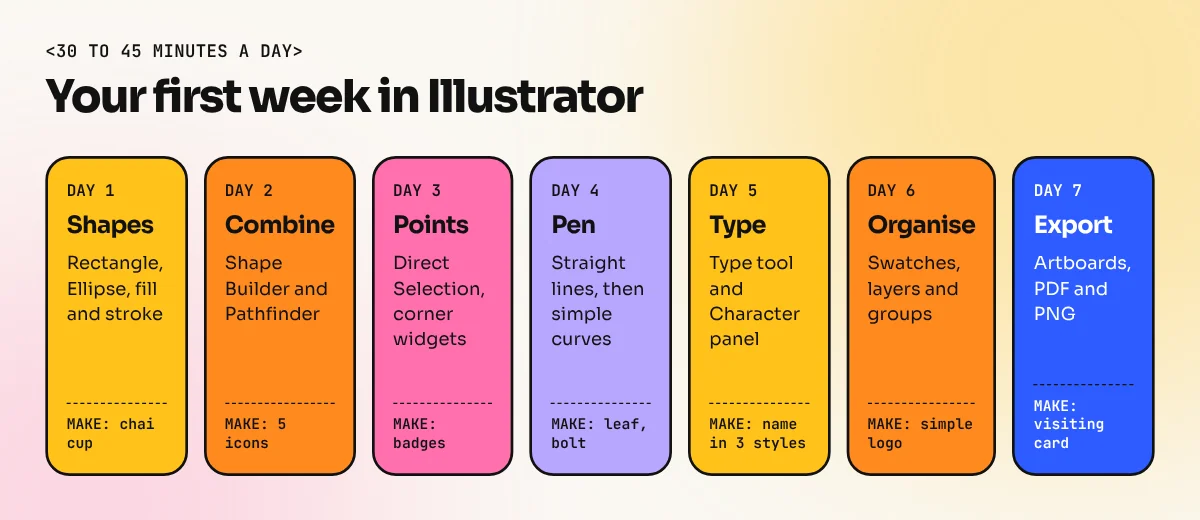
| Day | Practise | Make |
|---|---|---|
| 1 | Rectangle, Ellipse, Selection, fill and stroke | A flat chai cup from simple shapes |
| 2 | Shape Builder and Pathfinder | Five simple icons: home, phone, mail, pin, star |
| 3 | Direct Selection and corner widgets | Rounded app icons and badges |
| 4 | Pen tool, straight lines first | Trace a simple leaf and a lightning bolt |
| 5 | Type tool and character panel | Your name in three font styles |
| 6 | Swatches, layers and groups | A simple logo with an icon and a wordmark |
| 7 | Artboards and export | A visiting card, front and back, exported as PDF and PNG |
By day seven you have a small set of real work. Keep going with one project a week and your portfolio grows on its own.
Exporting your work the right way
- For print: File > Save As > Adobe PDF. Pick a press quality preset and include bleed if the printer wants it.
- For web and social: File > Export > Export As, then PNG or JPG. Use PNG when you need a transparent background, like a logo on a photo.
- For a logo pack: keep the .ai master, then export PDF, SVG and PNG versions.
- Always keep the original .ai file. Clients will ask for changes.
Common beginner mistakes
- Starting with the pen tool. Learn shapes first; you will use them more than you think.
- Working in RGB for print. Colours shift when printed. Set CMYK at the start.
- Forgetting to group. Moving half a logo by accident is a classic first-week mistake.
- Too many anchor points. Fewer points make smoother curves and lighter files.
- Not saving. Save often. Use versions like logo-v1, logo-v2.
Once these ten tools feel easy, learn the Width tool, Recolor Artwork, clipping masks, the Blend tool and type on a path. Then practise real briefs: a menu card, a label, a T-shirt print.
If you want a trainer to check your work as you go, the Illustrator course covers these tools with real print and logo projects, 1-to-1 in South Extension or live online. If you want Illustrator along with Photoshop, InDesign, AI image tools and a portfolio, the 6-month graphic design diploma covers all of it.
Frequently asked questions
Is Adobe Illustrator hard for beginners?
The basics are not hard. Most beginners can make simple logos, icons and posters within one or two weeks of daily practice. The pen tool takes longer to feel natural, but you can make a lot with shapes and the Shape Builder tool before you master it.
Can I learn Illustrator on my own?
Yes, many people start with free tutorials and daily practice. What a trainer adds is quick feedback on mistakes, a clear order of topics and real briefs, which is what usually takes self-learners the longest to figure out.
Is there a free version of Adobe Illustrator?
Adobe offers a free trial of its Creative Cloud apps, which Adobe's help pages describe as 7 days. After that you need a paid plan. Check Adobe's official website for current plans in India.
Should I learn Illustrator or Photoshop first?
If you want to design logos, icons, visiting cards and print layouts, start with Illustrator. If you mostly edit photos or make social posts from photos, start with Photoshop. Most working designers use both, so you will learn the second one soon after.